VeloTape
×VeloTape

Integration guide

How to use Rithmic R Trader with VeloTape

Export Order History from R | Trader Pro and upload the CSV to journal your futures fills.

File upload

Overview

Rithmic does not offer a public auto-sync API for journals yet. Export Completed Orders from R | Trader Pro as CSV, then upload the file in VeloTape. Works with prop firm and FCM accounts that use Rithmic.

FuturesMicro futures
File upload

Import trades from an R | Trader Pro Order History CSV

Follow these steps to export filled orders and upload them to VeloTape. Configure columns on the Completed Orders grid before you export — Rithmic only writes visible columns.
1

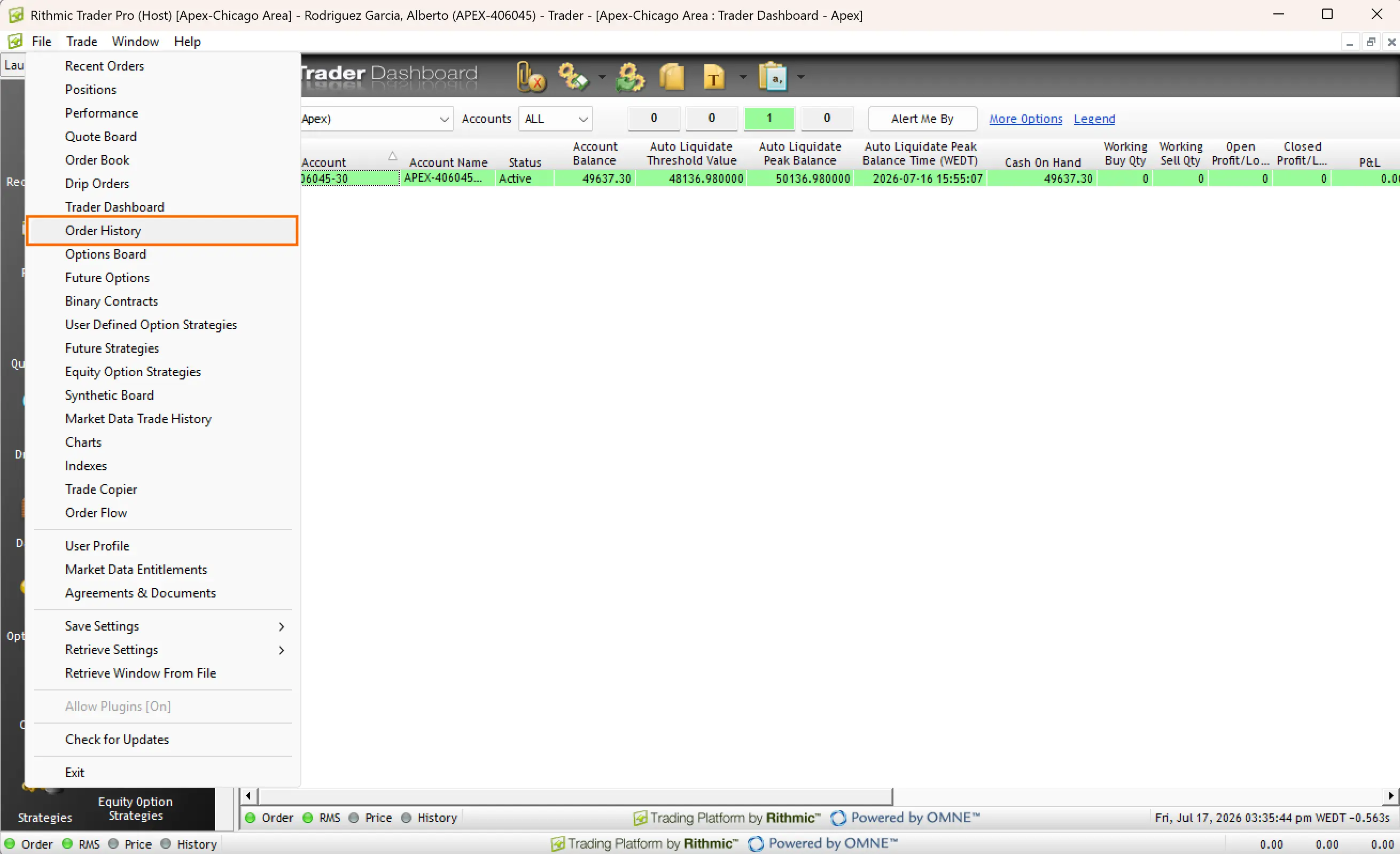
Open Order History in R | Trader Pro

  1. Launch R | Trader Pro and log in to your prop firm or FCM system.
  2. Open File in the top-left menu.
  3. Select Order History from the dropdown.
R | Trader Pro File menu with Order History highlighted
2

Choose the account and date

  1. In the Order History window, select the account you want to import.
  2. Pick the trading date to export.
  3. Confirm filled rows appear under Completed Orders.

R | Trader Pro exports one day at a time. Repeat the export for each day you want in VeloTape.
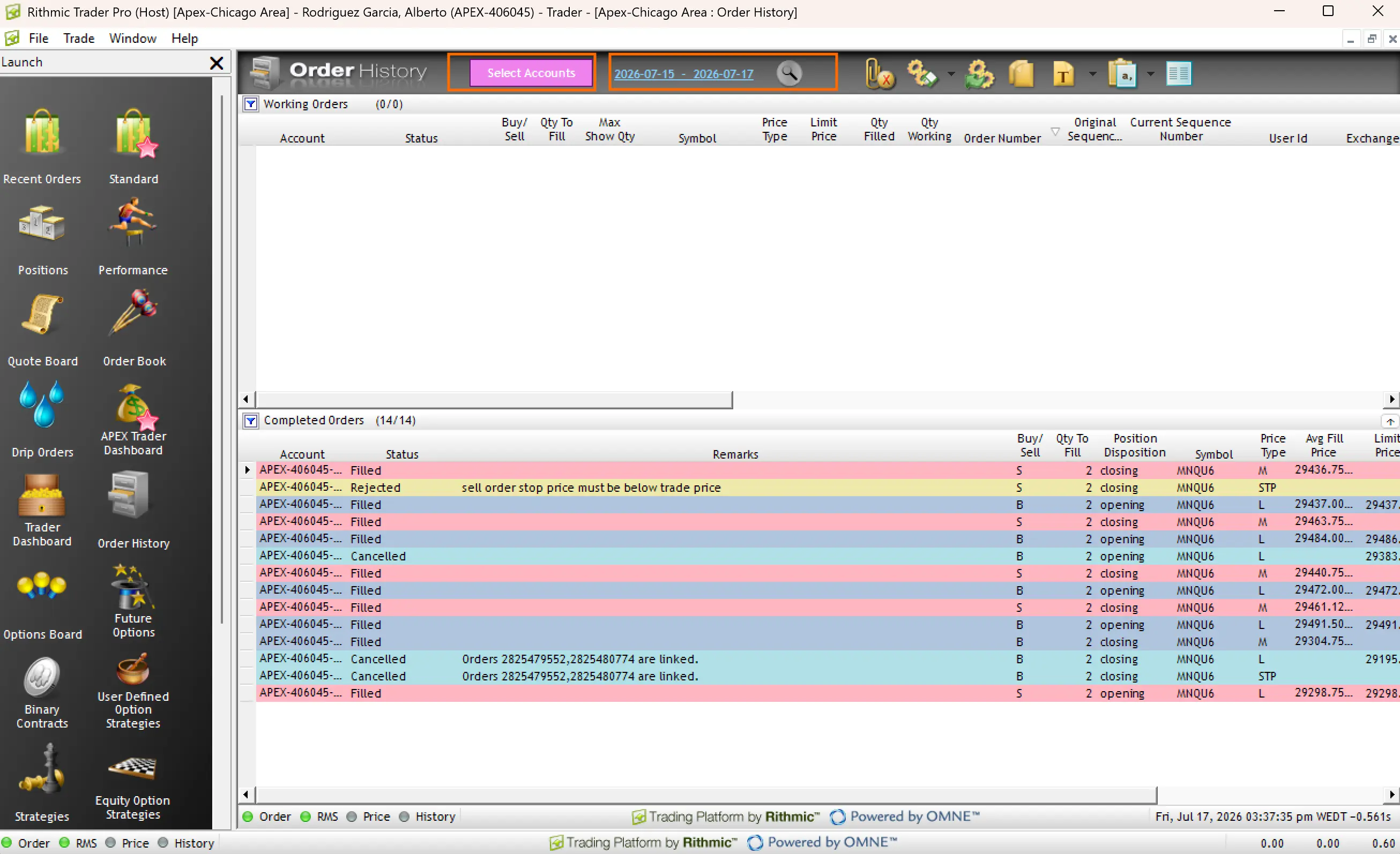
R | Trader Pro Order History with Account and Date selectors highlighted
3

Show the required columns in Completed Orders

  1. In the Completed Orders section (not Working Orders), right-click a column heading.
  2. Click Add/Remove Columns.
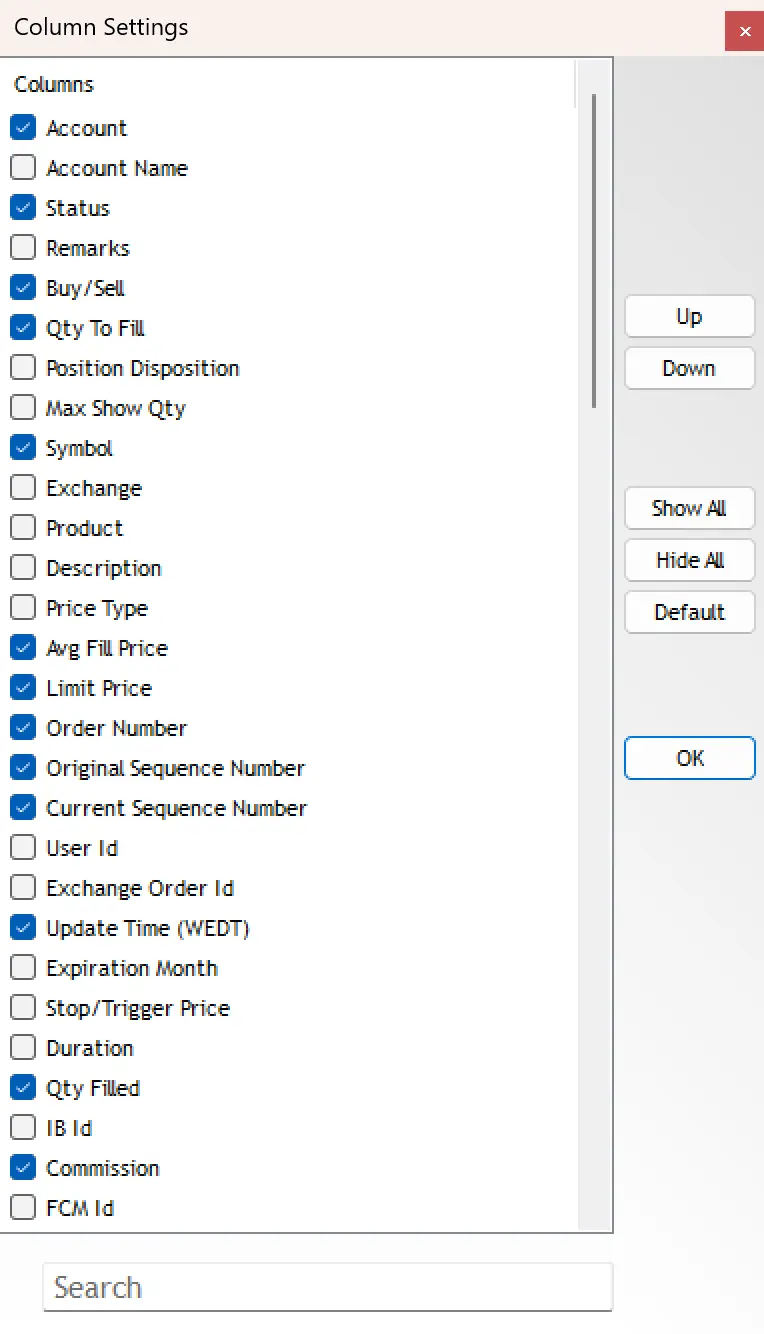
  3. Enable at least: Account, Status, Remarks, Buy/Sell, Qty To Fill, Symbol, Qty Filled, Avg Fill Price, Limit Price, Order Number, Create Time, Update Time, and Commission when available.
  4. Click OK.

Working Orders and Completed Orders have separate column settings. Always configure Completed Orders before export.
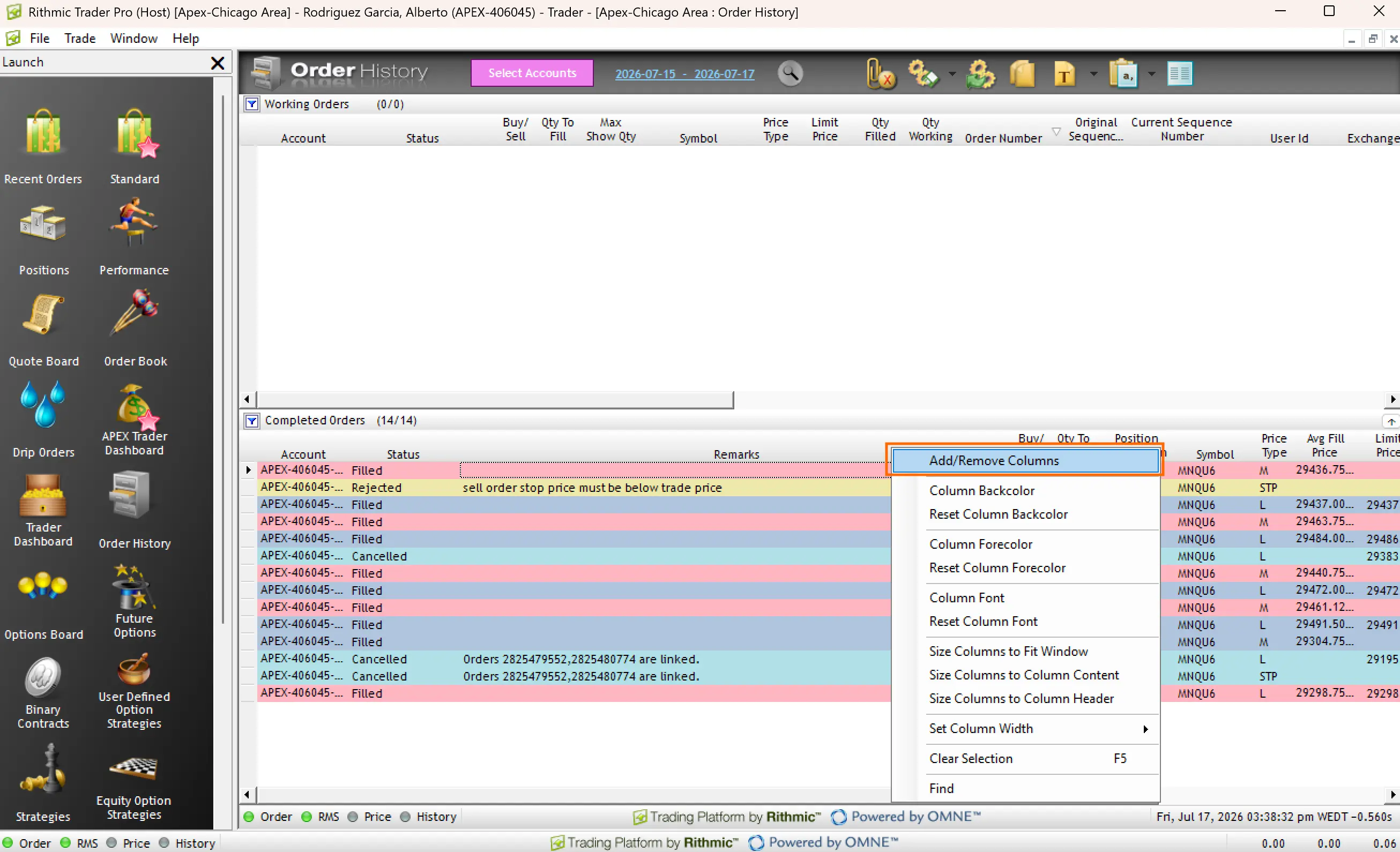
Order History Completed Orders section with Add/Remove Columns highlighted
Column Settings dialog with Qty Filled and other required columns checked
4

Export as CSV

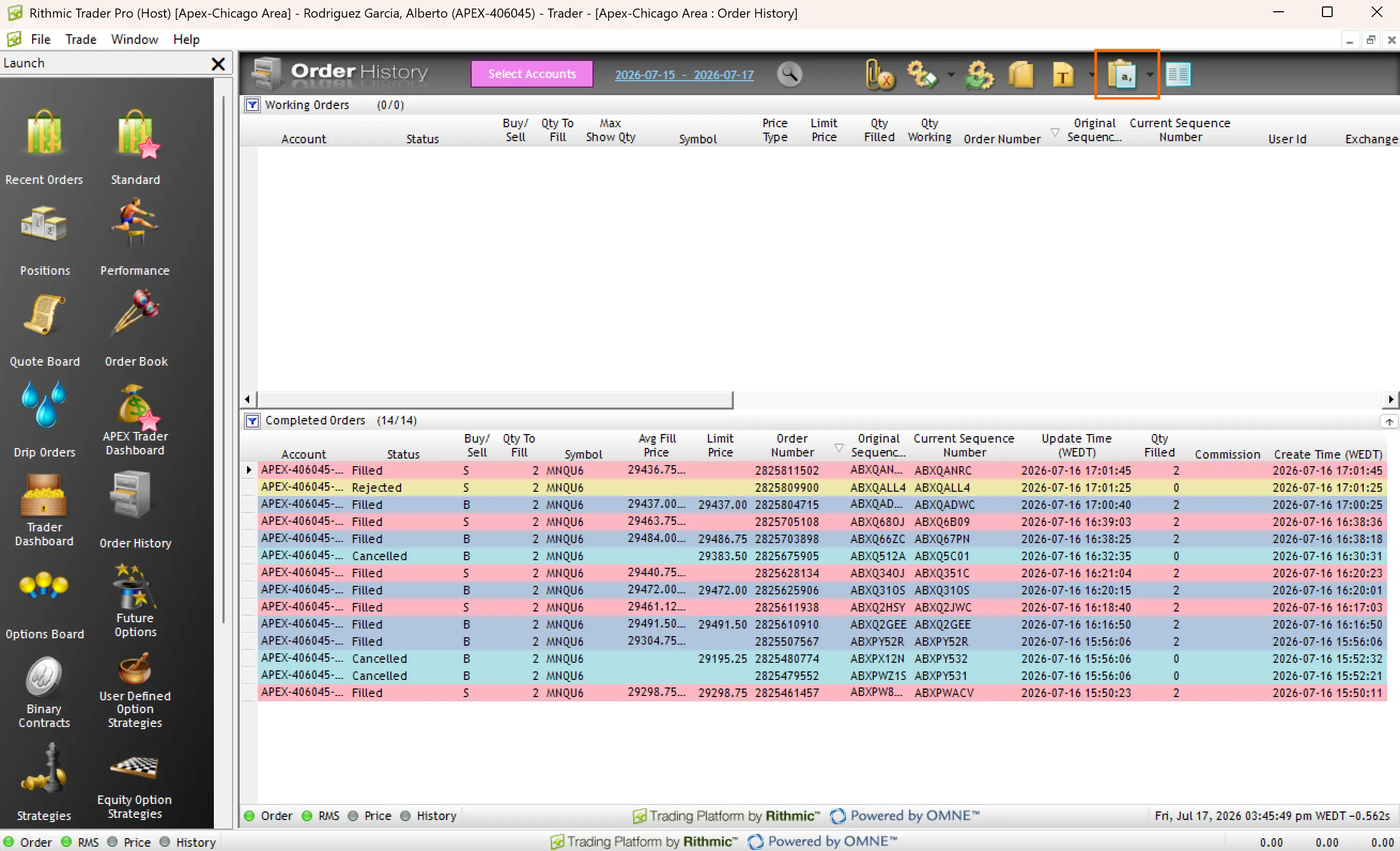
  1. On the Order History toolbar, open the spreadsheet / export menu.
  2. Choose Export As CSV.
  3. Save the file without editing it in Excel — keep the Working Orders and Completed Orders sections as exported.
Order History toolbar with Export As CSV highlighted
5

Upload the CSV in VeloTape

  1. Open Settings → Accounts → Add account.
  2. Choose Prop firm → Rithmic R Trader → File upload (or Apex via Rithmic).
  3. Enter the account name, currency, and starting balance.
  4. Select the Order History CSV and create the account.
  5. Review the grouped round-trip trades, then confirm the import.

VeloTape reads the Completed Orders table, keeps Filled rows only, and groups fills into round trips per symbol.
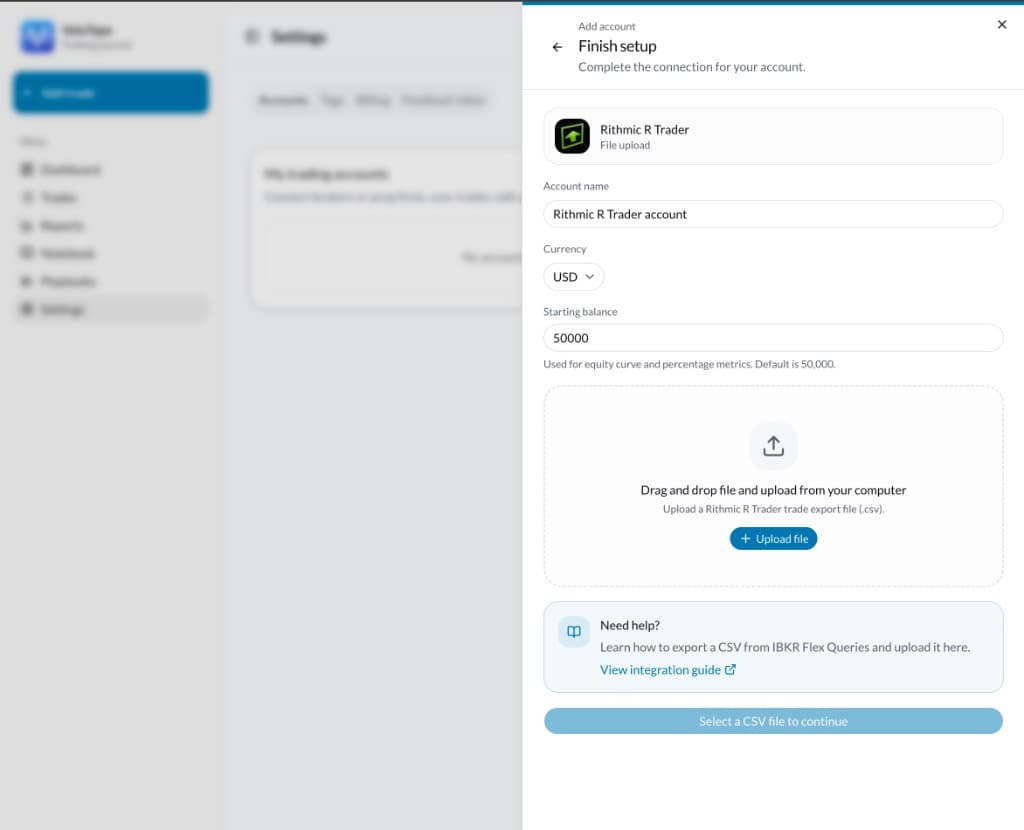
VeloTape Finish setup screen for Rithmic R Trader file upload
IssueWhat to try
Missing Symbol, Buy/Sell, Qty Filled, or Avg Fill PriceAdd those columns on the Completed Orders grid, then export again. Do not rename columns in a spreadsheet.
0 trades importedConfirm the file has Filled rows under Completed Orders. Cancelled and Rejected rows are skipped.
Wrong day or incomplete historyExport each trading day separately and upload every CSV for that account.
Unsupported or empty CSVExport from Order History with Export As CSV. Keep the multi-section file; do not paste into a new sheet first.

Frequently asked questions

Is Rithmic auto-sync available?
Not yet. Direct sync needs R | Protocol API access and Rithmic conformance. Use CSV import after each session until then.
Which prop firms work with this guide?
Any account that trades through R | Trader / Rithmic — including Apex, Topstep, Bulenox, Earn2Trade, and similar — as long as you export Order History CSV.
Can I export more than one day at once?
R | Trader Pro Order History is day-scoped. Export once per day and upload each file to the same VeloTape account.
Are commissions included?
Yes when the Commission column is visible at export time. If it is hidden, P&L may omit commissions.
Will re-uploading the same day create duplicates?
VeloTape matches fills within the account to avoid duplicate round trips when you re-import overlapping exports.

Import trades from other brokers and platforms with the same guided flow.

VeloTape is not affiliated with Rithmic or R | Trader Pro. Use of those names or logos is informational and does not imply endorsement. Futures trading involves substantial risk.