VeloTape
HomeBlogFeaturesPricing
VeloTape

A focused workspace for importing trades, reviewing execution, and turning performance data into a repeatable process.

24 auto-sync connections available

Product

FeaturesAuto-syncRecommendedPricingDashboard

Resources

BlogApex Prop DeskTopstep Prop DeskTradeZella alternativeContact usInteractive Brokers guideTradovate guideRithmic guideBingX guideGet Started

Legal

PrivacyTerms

Recommended integrations

NinjaTraderKinetick

Trading involves substantial risk and is not suitable for everyone. VeloTape is for journaling and analytics only — we do not provide investment advice or trade recommendations.

Futures and forex trading contains substantial risk and is not for every investor. An investor could potentially lose all or more than the initial investment. Risk capital is money that can be lost without jeopardizing ones' financial security or lifestyle. Only risk capital should be used for trading and only those with sufficient risk capital should consider trading. Past performance is not necessarily indicative of future results.

Hypothetical performance results have many inherent limitations, some of which are described below. No representation is being made that any account will or is likely to achieve profits or losses similar to those shown; in fact, there are frequently sharp differences between hypothetical performance results and the actual results subsequently achieved by any particular trading program. One of the limitations of hypothetical performance results is that they are generally prepared with the benefit of hindsight. In addition, hypothetical trading does not involve financial risk, and no hypothetical trading record can completely account for the impact of financial risk of actual trading. For example, the ability to withstand losses or to adhere to a particular trading program in spite of trading losses are material points which can also adversely affect actual trading results. There are numerous other factors related to the markets in general or to the implementation of any specific trading program which cannot be fully accounted for in the preparation of hypothetical performance results and all of which can adversely affect trading results.

© 2026 VeloTape. All rights reserved.

Sign inSign up
×VeloTape

Integration guide

How to use BingX with VeloTape

Connect a Read-only BingX API key for ongoing USD-M Perpetual sync, or upload Order History CSV to backfill older trades.

Create free accountSign in
Auto syncFile upload

Overview

VeloTape imports BingX USD-M Perpetual Futures fills only (not Spot). API lookback is about 3 months — use Order History CSV for older history. Always create API keys with Read permission only.

USD-M Perpetual Futures
Visit BingX
Auto sync

Import trades with Read-only API sync

Create a Read-only BingX API key, paste it in VeloTape, and sync USD-M Perpetual Futures fills. Never enable trade or withdraw permissions.

API history is limited to about 3 months for perpetual fills. Import Order History CSV for older trades, then keep auto-sync for new fills. Spot is not supported.
1

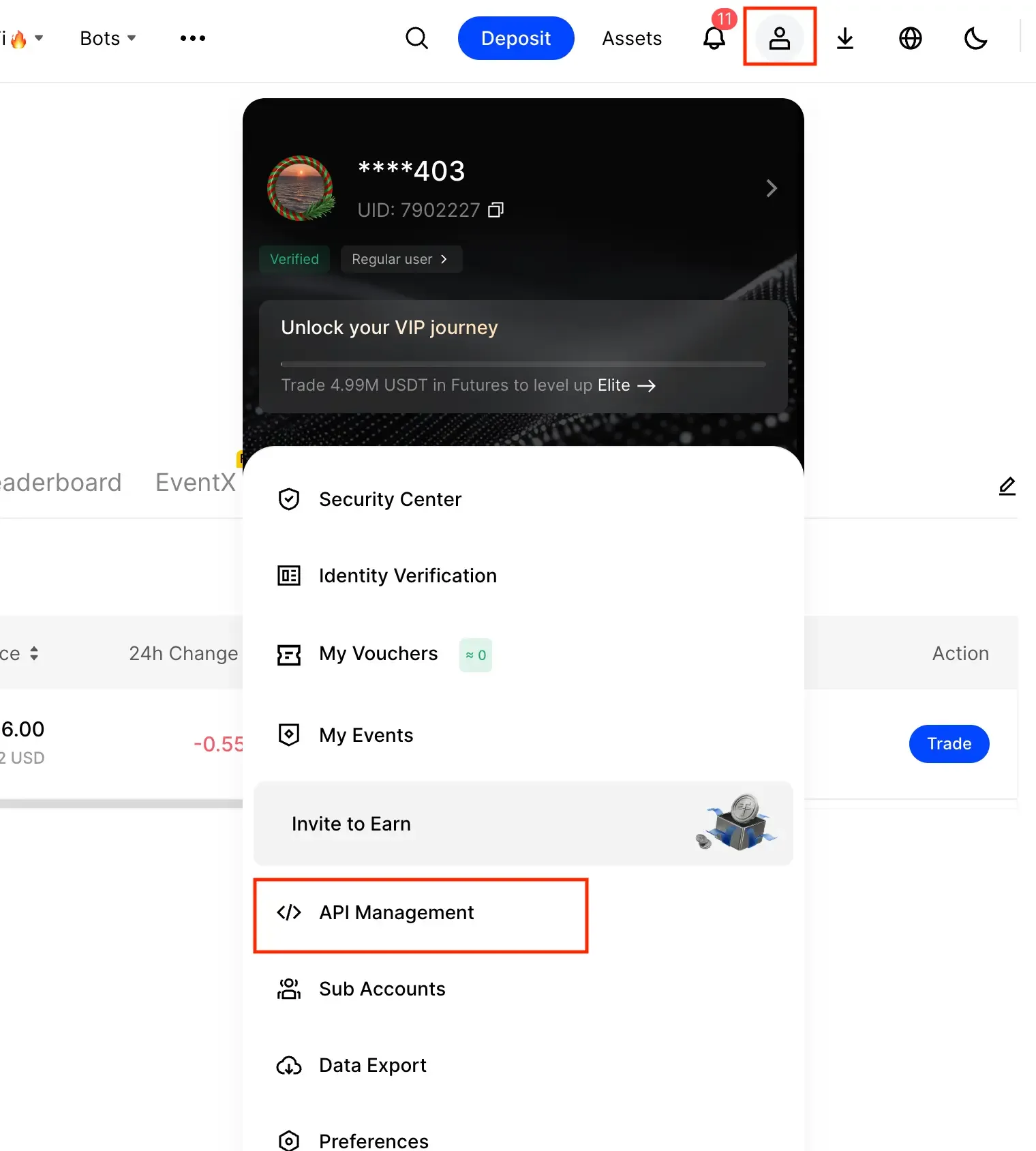
Open API Management in BingX

  1. Log in to BingX on desktop.
  2. Click your profile icon in the top-right corner.
  3. Select API Management.
BingX profile menu with API Management highlighted
2

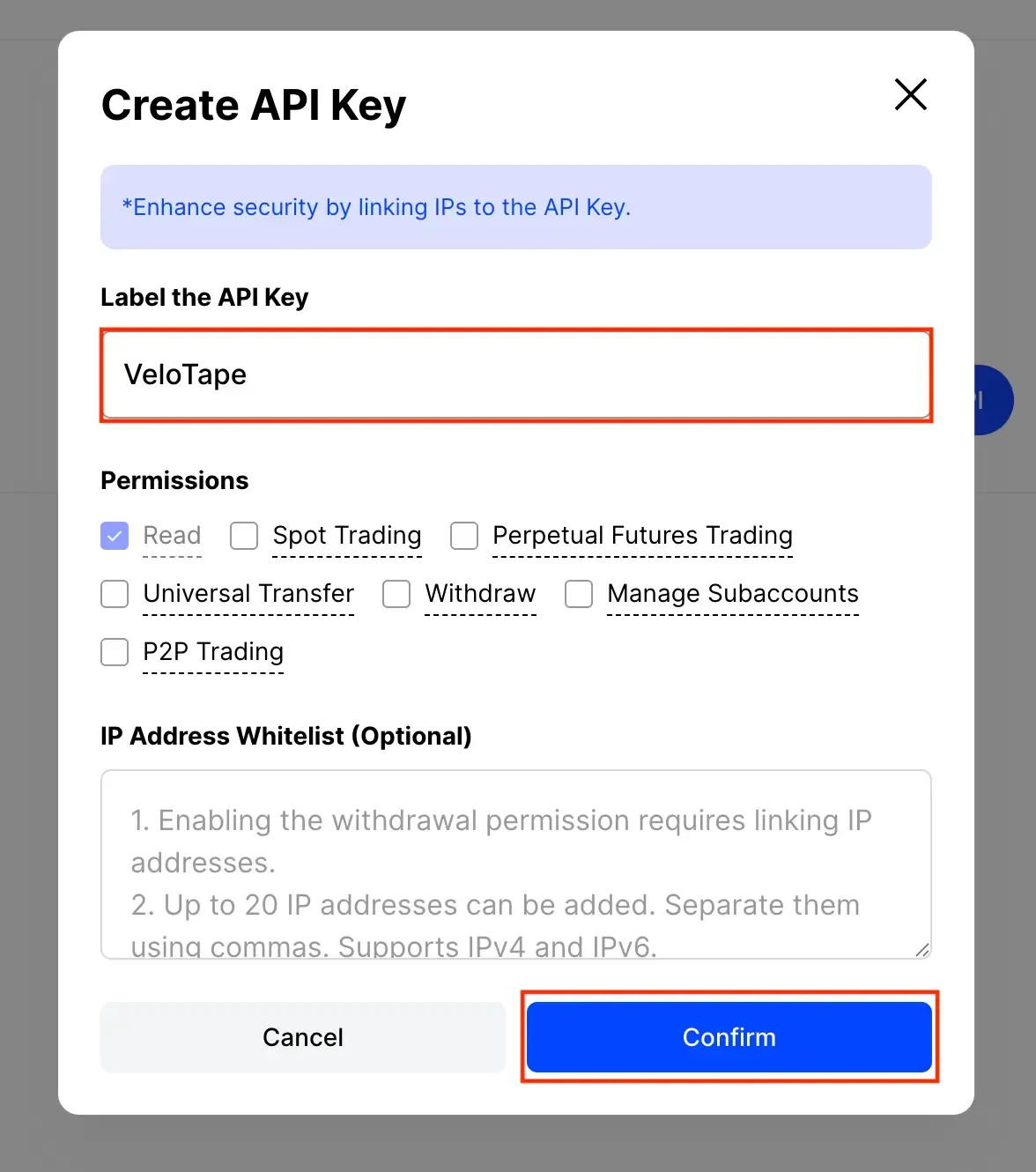
Create a Read-only API key

  1. On the API Management page, click Create API.
  2. Label the key (for example, VeloTape).
  3. Leave only Read checked — do not enable Spot Trading, Perpetual Futures Trading, Transfer, or Withdraw.
  4. Click Confirm.

If BingX asks you to restrict the API key by IP address, leave it unrestricted (or empty) so VeloTape can sync from the cloud.
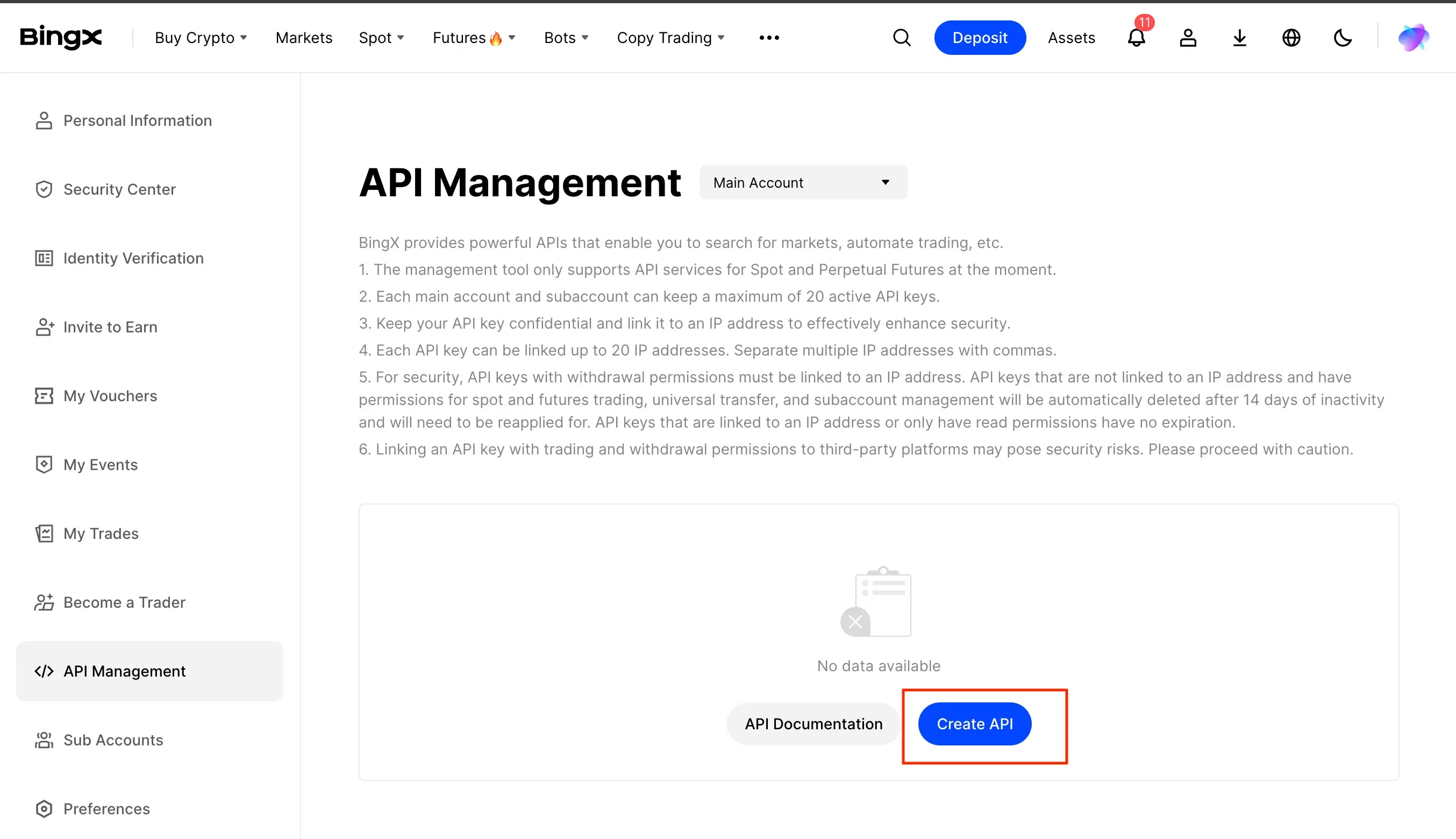
BingX API Management page with Create API highlighted
BingX Create API Key dialog with VeloTape label, Read permission, and Confirm highlighted
3

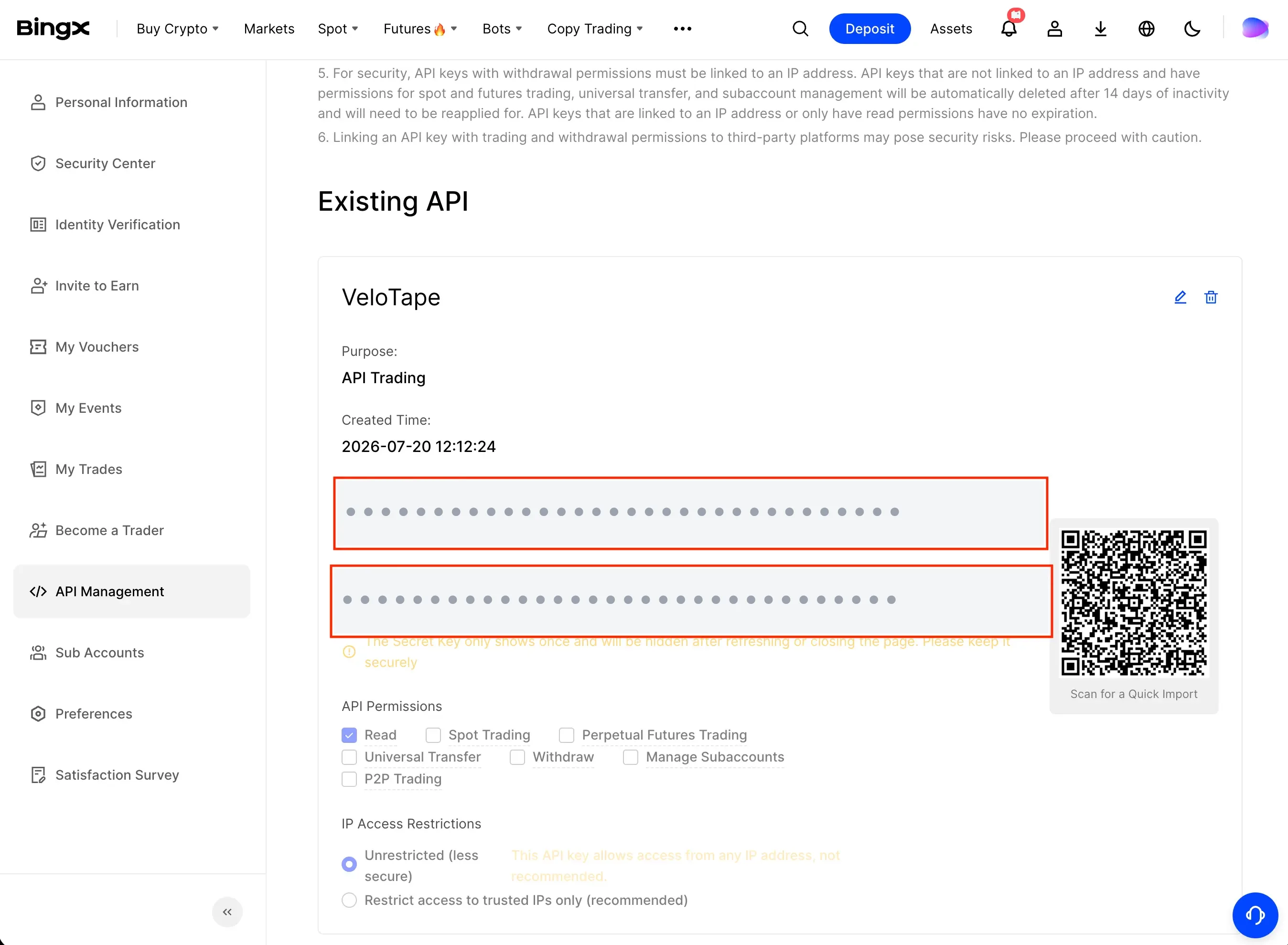
Copy your API Key and Secret

  1. Copy the API Key.
  2. Copy the Secret Key — BingX shows it only once.
  3. Keep both ready to paste into VeloTape.
BingX API details with API Key and Secret Key fields highlighted (values masked)
4

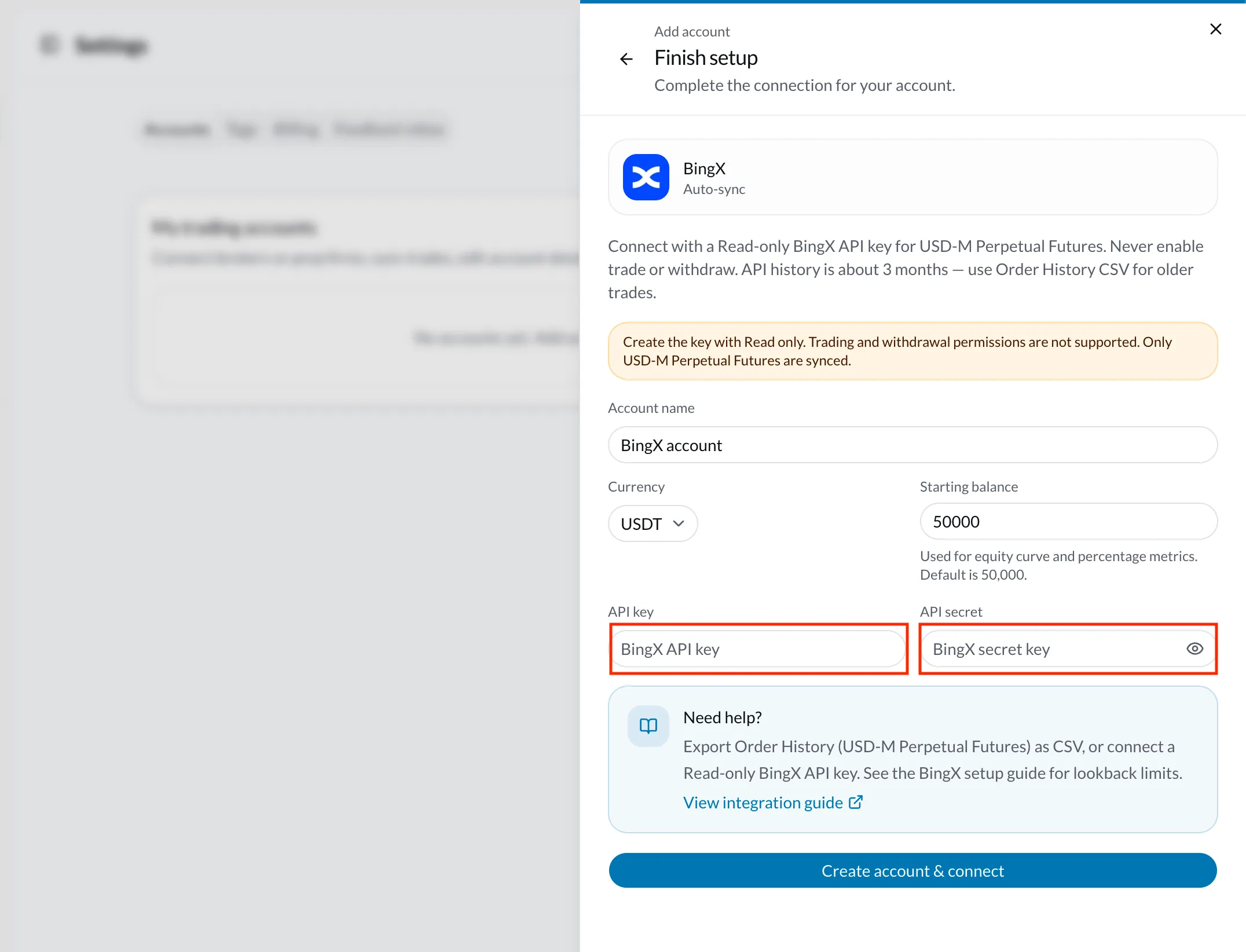
Connect in VeloTape

  1. Sign in to VeloTape and open Settings → Accounts.
  2. Click Add account → Exchange → BingX → Auto-sync.
  3. Enter an account name, currency (usually USDT), API key, and secret.
  4. Click Create account & connect — VeloTape encrypts the secret and syncs USD-M Perpetual fills.
VeloTape Finish setup dialog with BingX API key and secret fields highlighted
5

Keep the journal up to date

  1. Use Sync now in Settings after new fills, or wait for scheduled sync.
  2. If credentials change, open Configure on the BingX account and paste a new Read-only key.
IssueWhat to try
Signature or auth errorRecreate a Read-only key, paste key and secret without spaces, and check that your system clock is accurate.
Few or no trades importedUse Sync now after reconnecting — VeloTape reads filled perpetual orders (including Autonomous Orders). Still expected outside the ~3 month API lookback: import Order History CSV for older fills.
Permission or IP errorsConfirm the key is Read-only. If you turned on IP restriction for the key in BingX, turn it off and try connecting again.
File upload

Import trades from BingX CSV

Export Order History from BingX for USD-M Perpetual Futures as CSV, then upload it in VeloTape to backfill history beyond API limits.
1

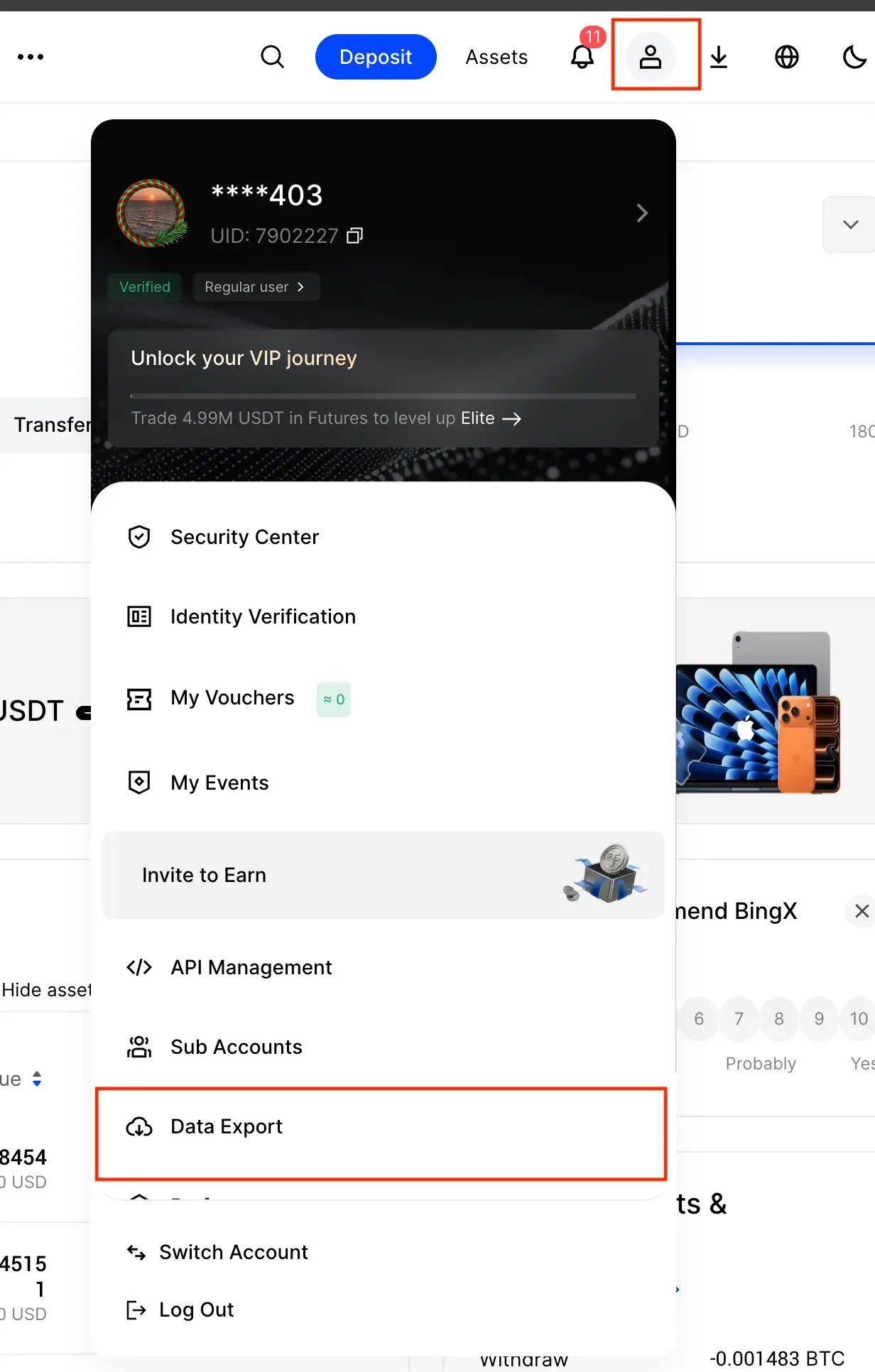
Open Data Export in BingX

  1. Log in to BingX on desktop.
  2. Click your profile icon in the top-right corner.
  3. Select Data Export.
BingX profile menu with Data Export highlighted
2

Generate Order History CSV

  1. Open the Order History tab (not Transaction History).
  2. Choose a time range (for example Past 90D or Past 1Y).
  3. Select only USDⓈ-M Perp Futures Account — leave Spot unchecked.
  4. Set File Type to CSV, then click Generate.

Order History includes fill prices and quantities. This is the preferred CSV format for VeloTape.
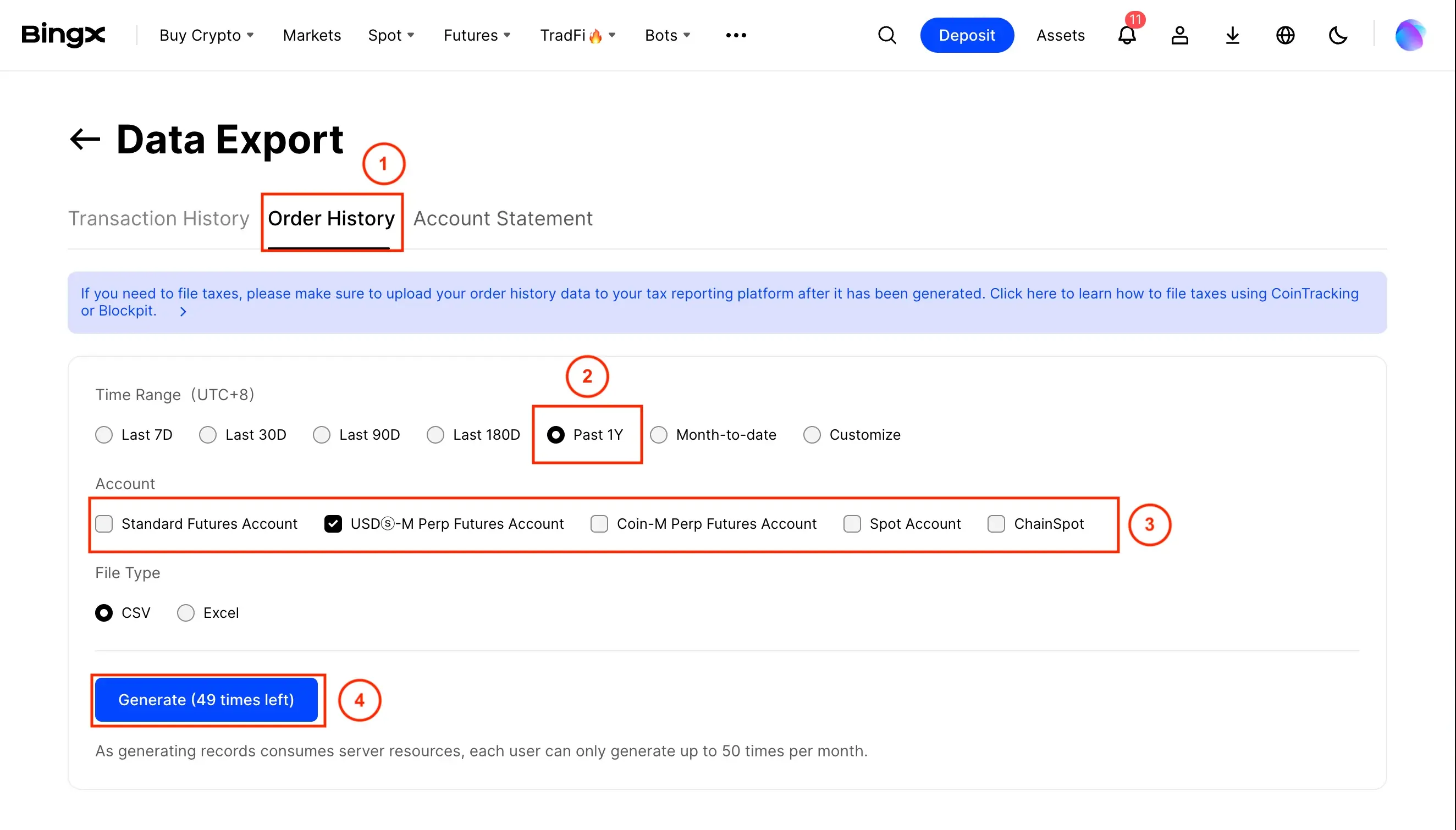
BingX Data Export Order History with Past 1Y, USD-M Perp Futures, CSV, and Generate highlighted
3

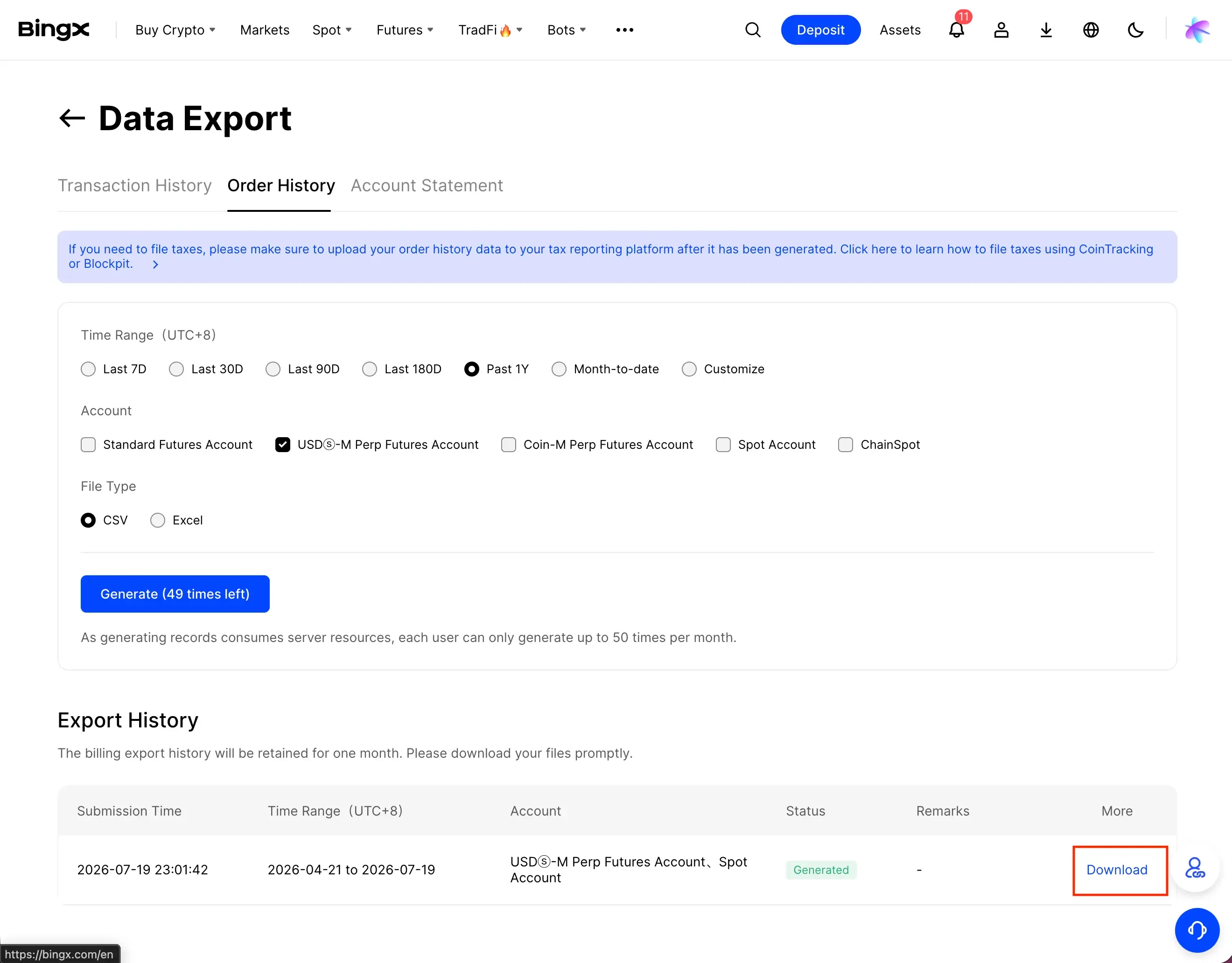
Download the export

  1. Wait until the row in Export History shows Generated.
  2. Click Download under More.
  3. Keep the USD-M Perpetual Futures CSV ready for VeloTape — do not rename required columns.
BingX Export History with Download highlighted for a generated Order History CSV
4

Upload the CSV in VeloTape

  1. Open Settings → Accounts → Add account (or Import CSV on an existing BingX account).
  2. Choose Exchange → BingX → File upload if creating a new account.
  3. Enter the account name, currency, and starting balance.
  4. Upload the Order History CSV, review the preview, and confirm the import.

Transfers and funding fees are skipped. Directions such as Buy, Sell, Open Long, and Close Short are supported.
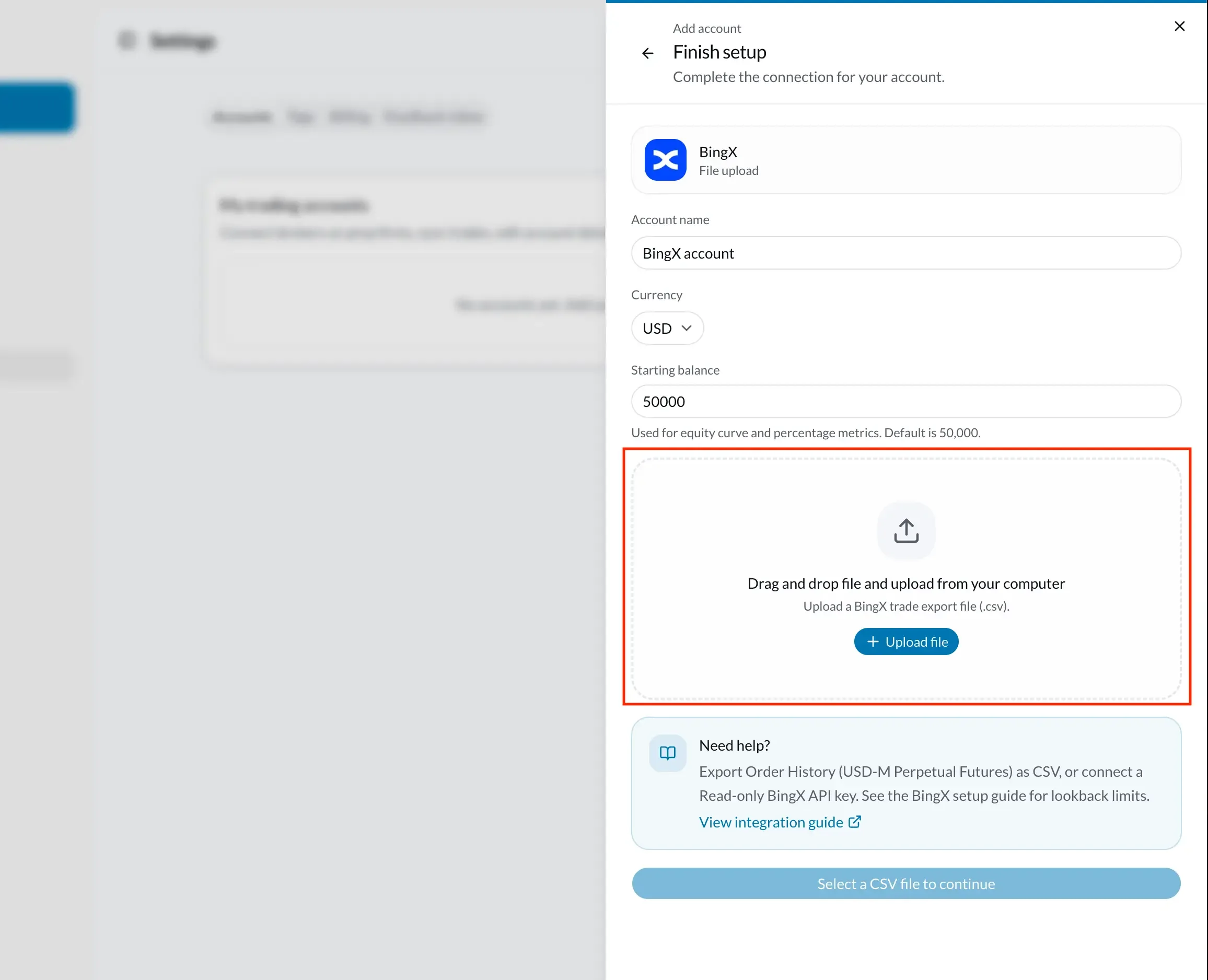
VeloTape Finish setup dialog with BingX CSV upload area highlighted
IssueWhat to try
CSV not recognizedUpload an Order History export for USD-M Perpetual Futures (columns like Pair, Type, Quantity, AvgPrice, Time).
XLSX rejectedIn BingX Data Export, choose File Type → CSV before Generate. If you already have Excel, save it as CSV UTF-8.
0 trades importedConfirm the file has filled order rows from Order History (USD-M Perpetual), not only deposits, transfers, or Spot.

Frequently asked questions

Should I use API sync or CSV?
Use Order History CSV to backfill older history, then connect a Read-only API key for ongoing USD-M Perpetual sync. API lookback is about 3 months.
Which markets are supported?
USD-M Perpetual Futures only. Spot is not imported via API or as the recommended CSV path.
Which API permissions are required?
Read only. Never enable trading or withdrawal on keys you paste into VeloTape.
Are funding fees imported?
No. Funding payments, deposits, withdrawals, and transfers are not imported as journal trades.
Does re-sync create duplicate trades?
No. Fills are keyed with stable external IDs so re-syncing the same history updates existing rows instead of duplicating them.
Is copy trading supported?
Not in v1. USD-M perpetual account fills are supported; copy-trading follower feeds are deferred.

Trading a prop firm?

Prop Desk on Free tracks daily loss, trailing drawdown, and payout readiness from closed trades — in-app gauges and warnings, not live trade blocking.

  • Apex Trader Funding journalTrailing DD, daily loss, and PA payout checklist from closed fills.
  • Topstep trading journalCombine and XFA buffers after trades close — Free Prop Desk.
  • TradeZella alternativeFree + $14.99 Essential vs TradeZella from $35/mo — honest comparison.

Related integrations

Import trades from other brokers and platforms with the same guided flow.

Interactive Brokers

Connect with Flex sync or upload an Activity Flex Query CSV.

Tradovate

Download an Orders CSV and import futures fills into VeloTape.

Rithmic R Trader

Export R | Trader Pro Order History and upload the CSV to journal fills.

VeloTape is not affiliated with BingX. Any use of BingX names or logos on this page is for informational purposes only and does not imply endorsement. Cryptocurrency trading involves substantial risk.
Create free accountSign in