 ×VeloTape
Guida all’integrazione
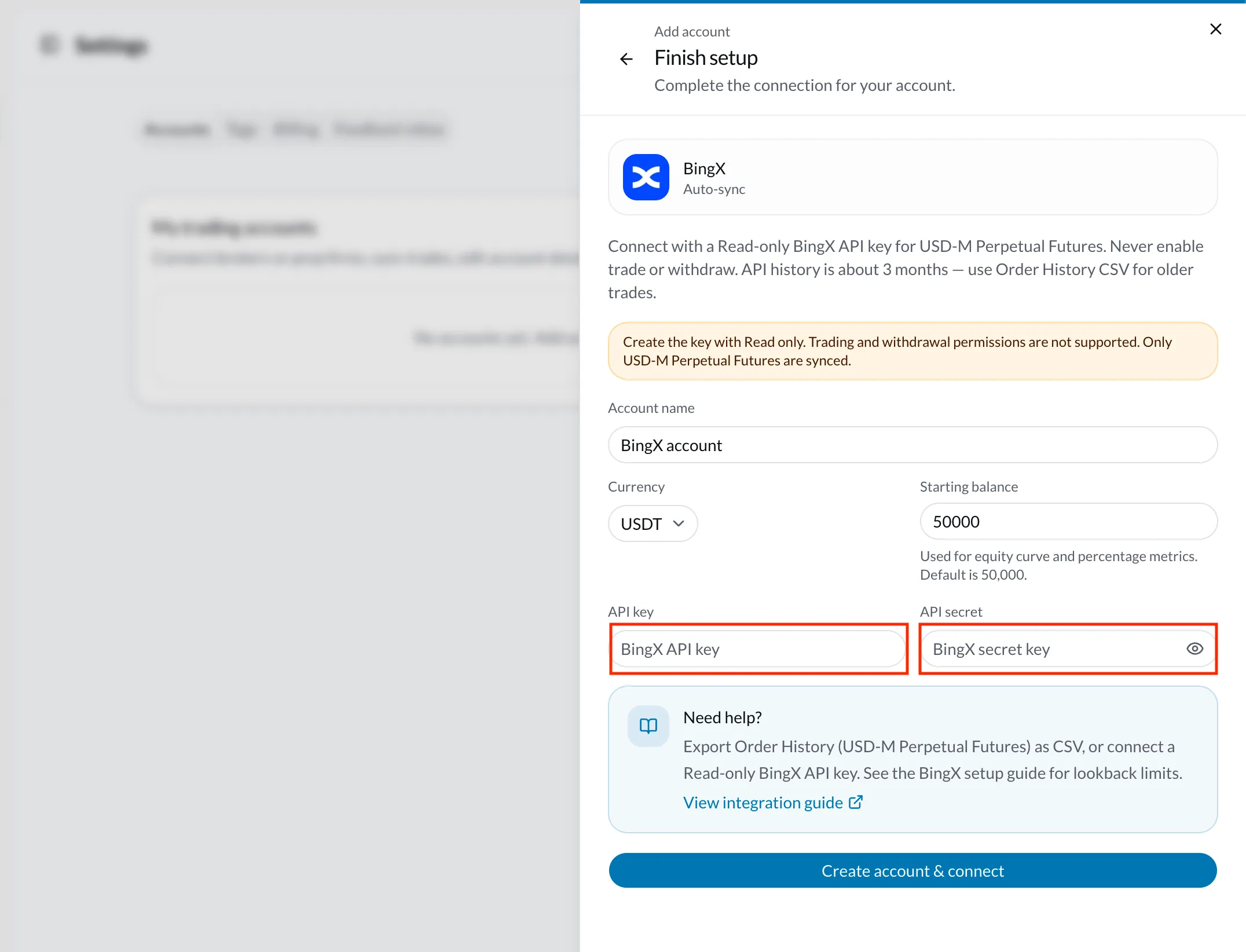
Collega una API key BingX in sola lettura per sincronizzare gli USD-M Perpetual, oppure carica Order History CSV per lo storico più vecchio.
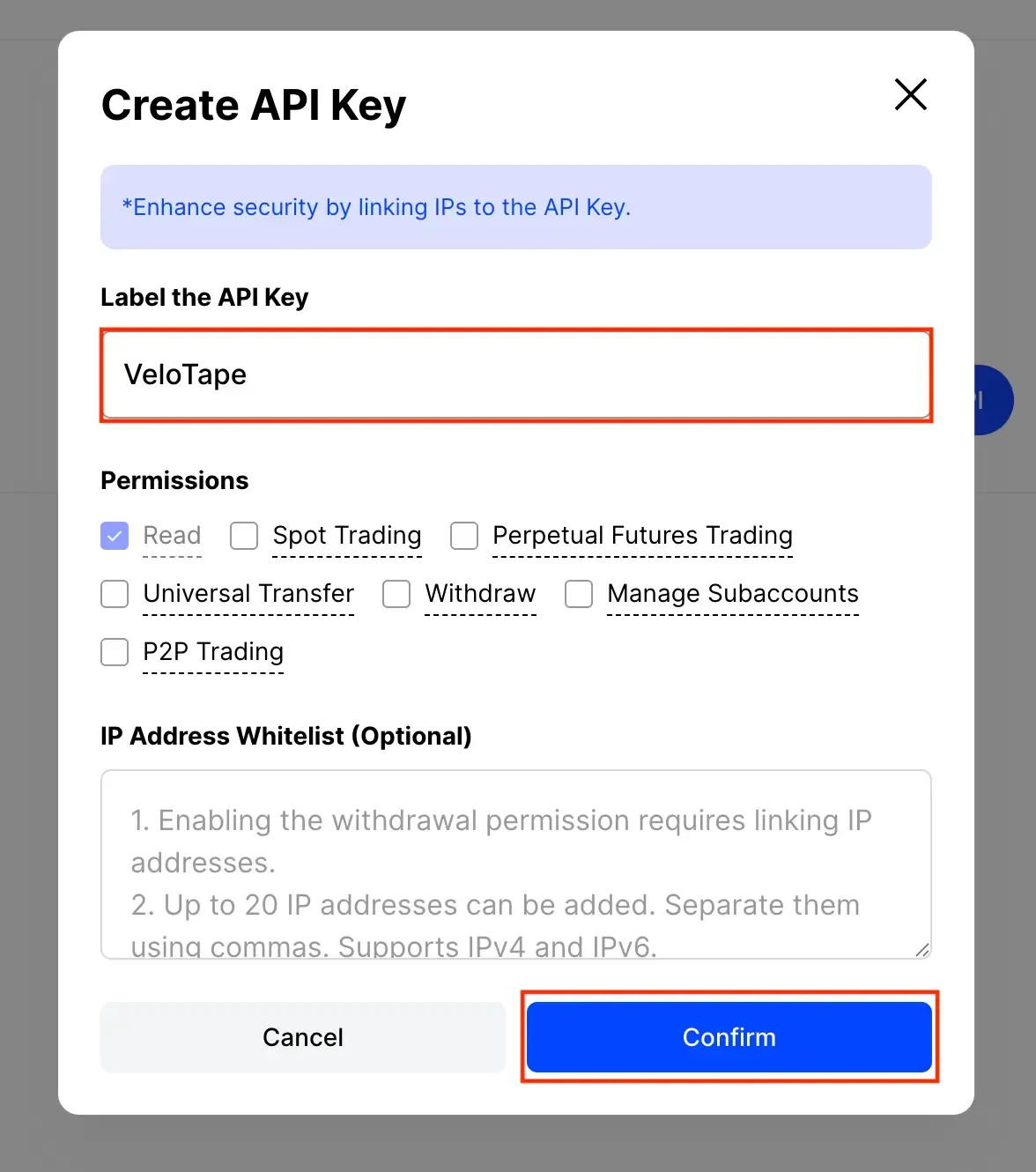
VeloTape importa solo fill BingX USD-M Perpetual Futures (non Spot). Lo storico API è di circa 3 mesi — usa Order History CSV per il resto. Crea sempre chiavi con permesso Read only.
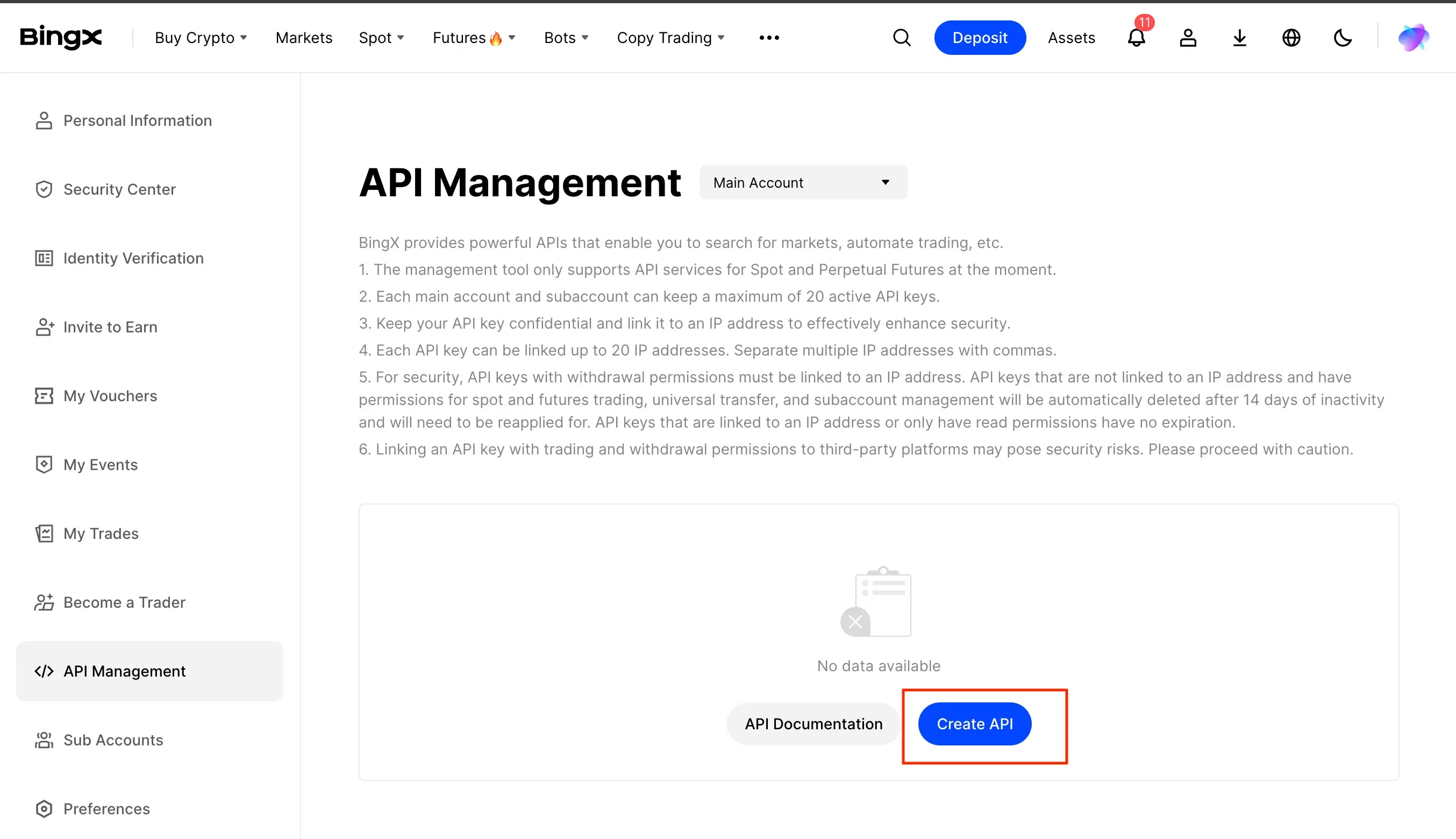
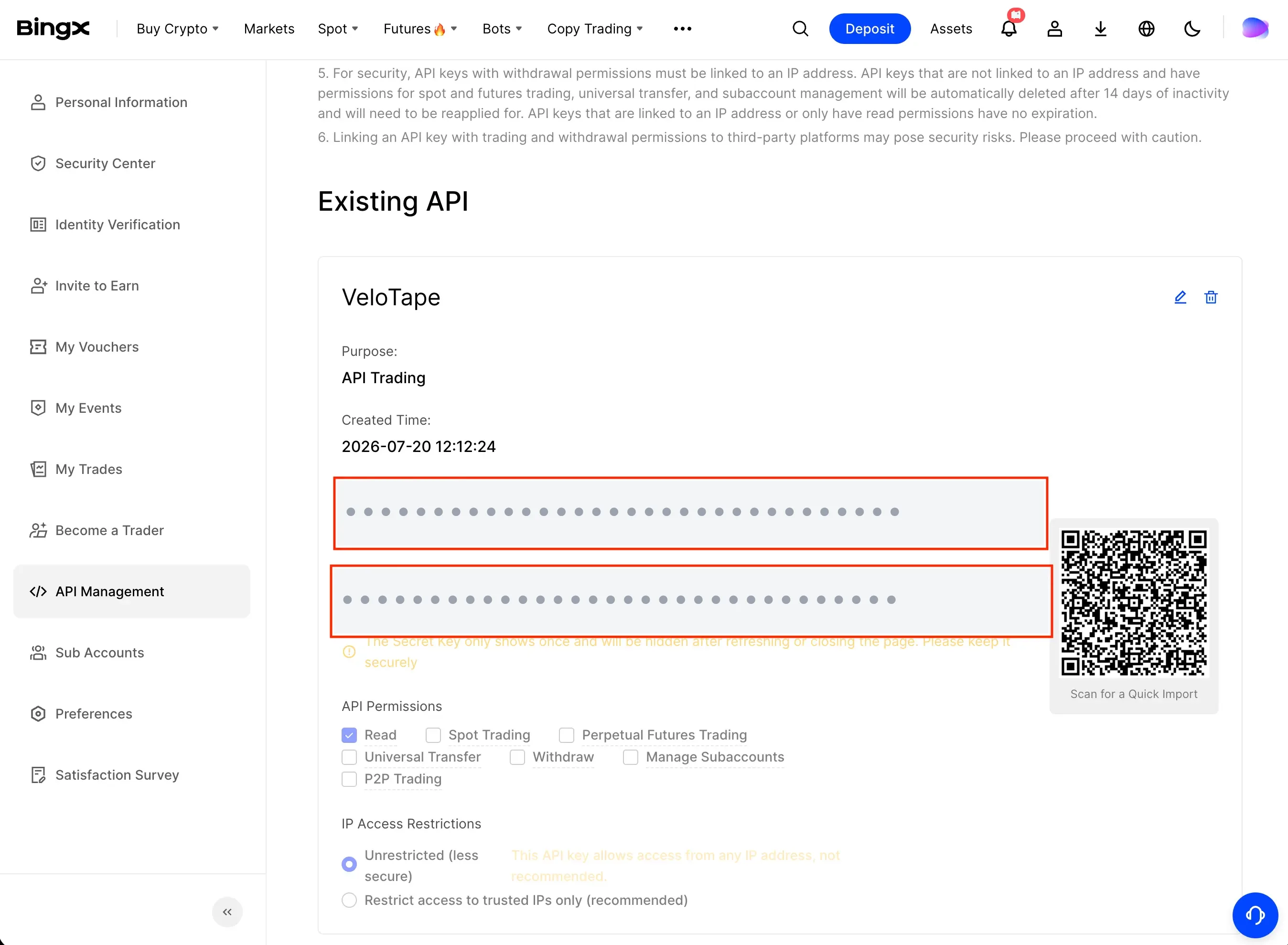
Crea una API key BingX in sola lettura, incollala in VeloTape e sincronizza i fill USD-M Perpetual Futures. Non attivare mai trade o withdraw.
Lo storico API per i perpetual è di circa 3 mesi. Importa Order History CSV per i trade più vecchi e mantieni l’auto-sync per i nuovi fill. Spot non è supportato.
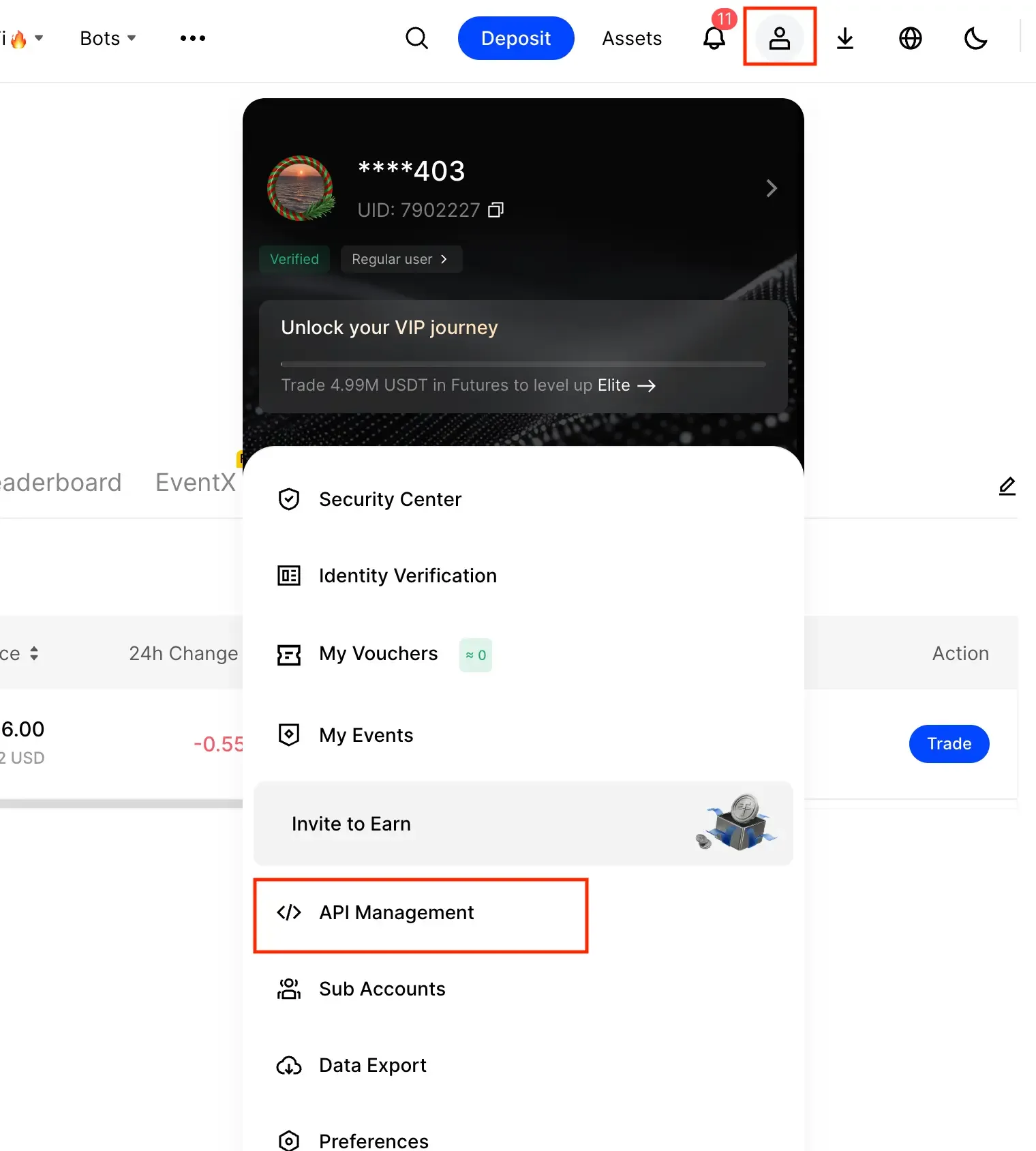
Se BingX chiede di limitare la chiave per IP, lasciala senza restrizioni così VeloTape può sincronizzare dal cloud.
| Problema | Cosa provare |
|---|---|
| Errore di firma o auth | Ricrea una chiave Read-only, incolla key e secret senza spazi e verifica che l’orologio di sistema sia corretto. |
| Pochi o nessun trade importato | Usa Sync now dopo la riconnessione — VeloTape legge ordini filled perpetual (inclusi Autonomous Orders). Fuori dal lookback API di ~3 mesi, importa Order History CSV. |
| Errori di permesso o IP | Conferma che la chiave sia Read-only. Se hai attivato la restrizione IP in BingX, disattivala e riprova. |
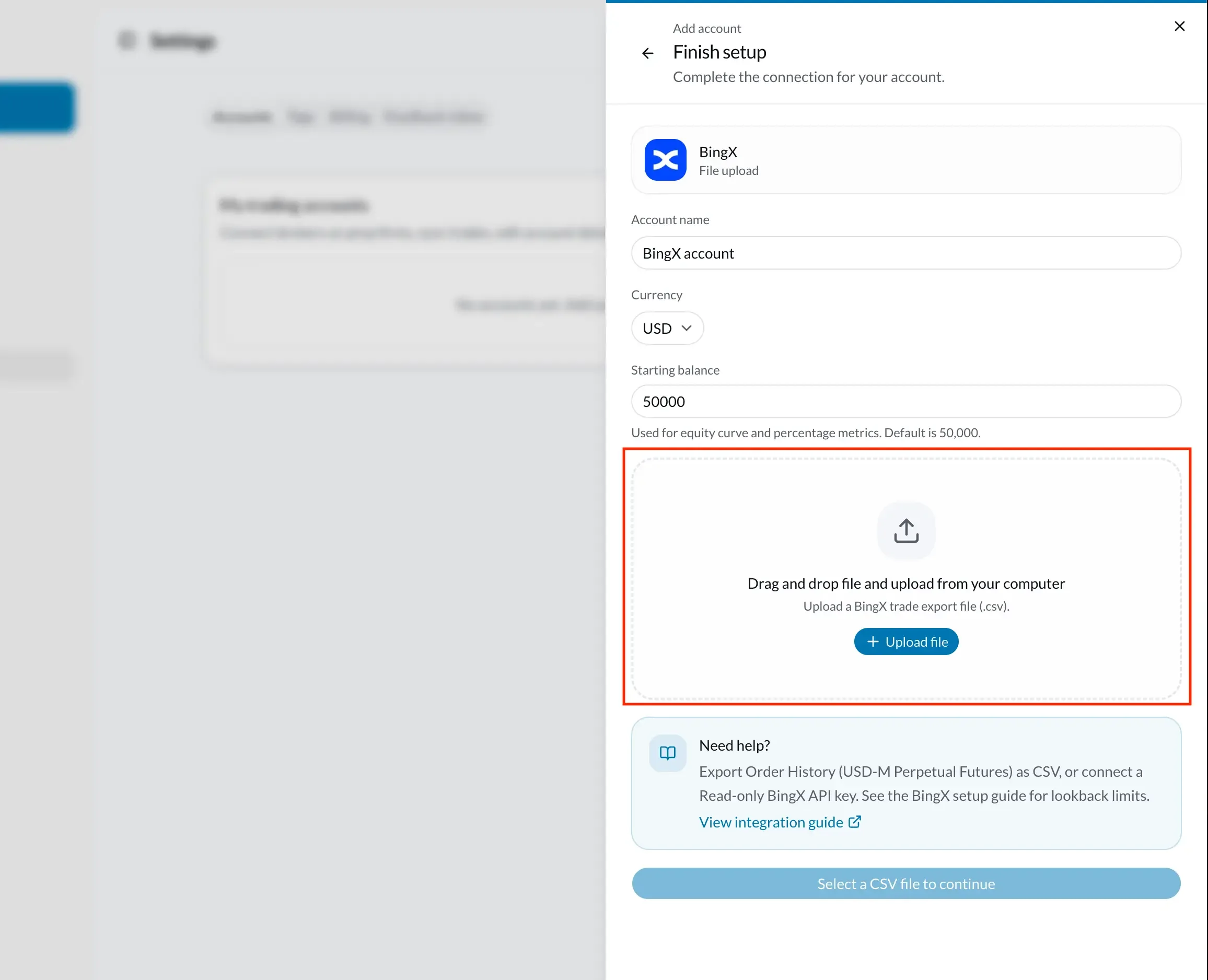
Esporta Order History da BingX per USD-M Perpetual Futures in CSV, poi caricalo in VeloTape per recuperare lo storico oltre i limiti API.
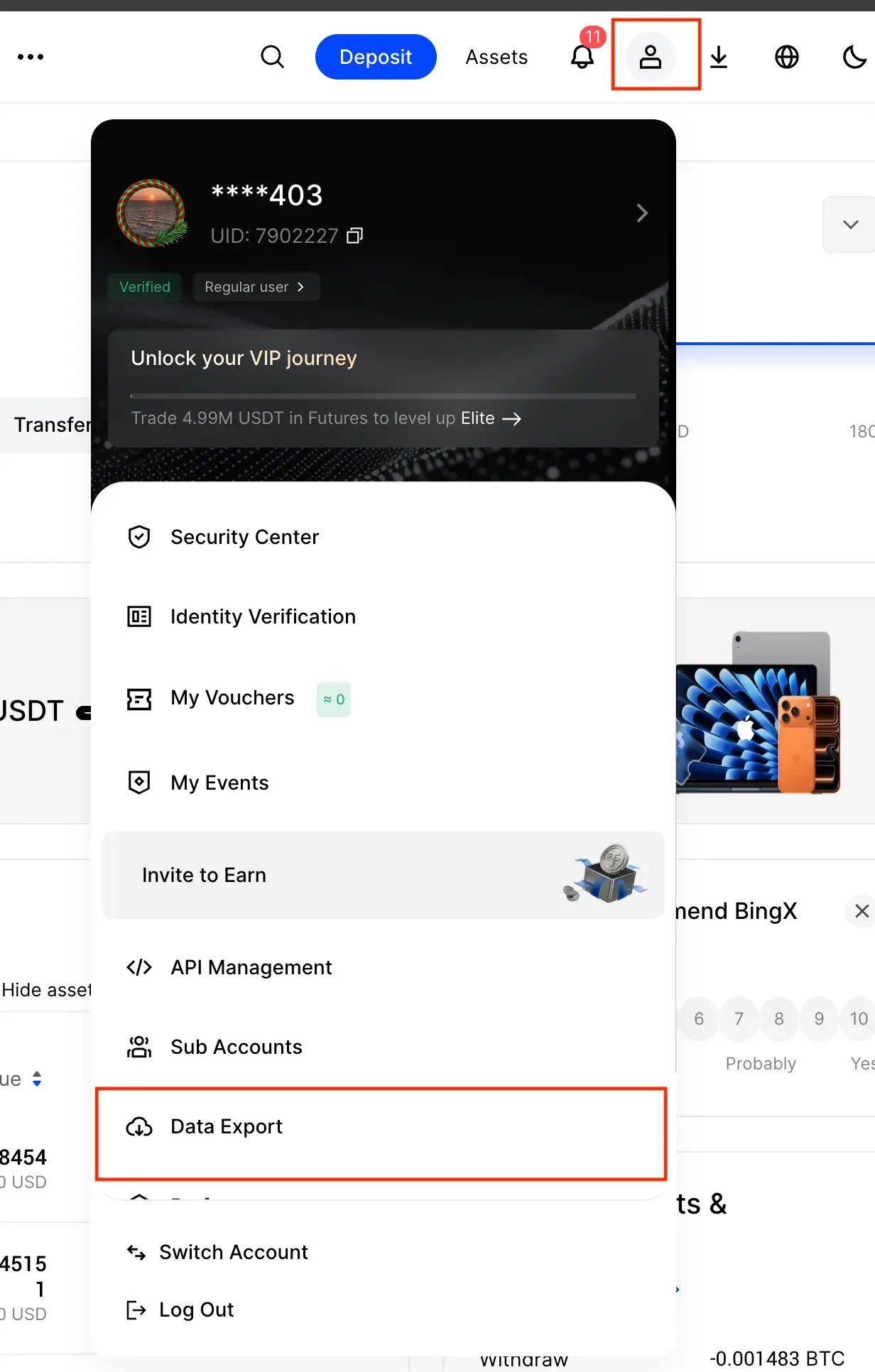
Order History include prezzi e quantità di fill. È il formato CSV preferito per VeloTape.
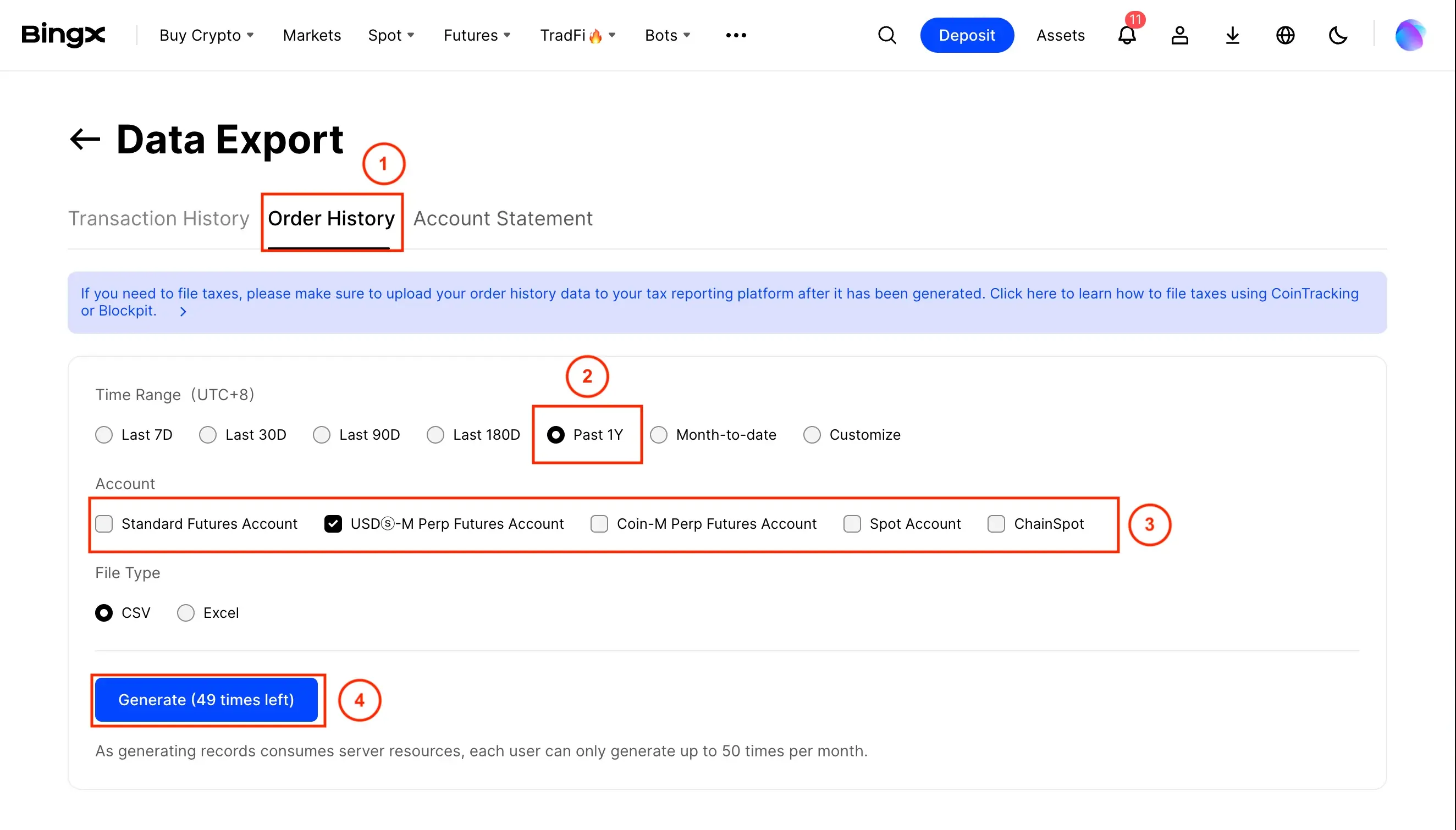
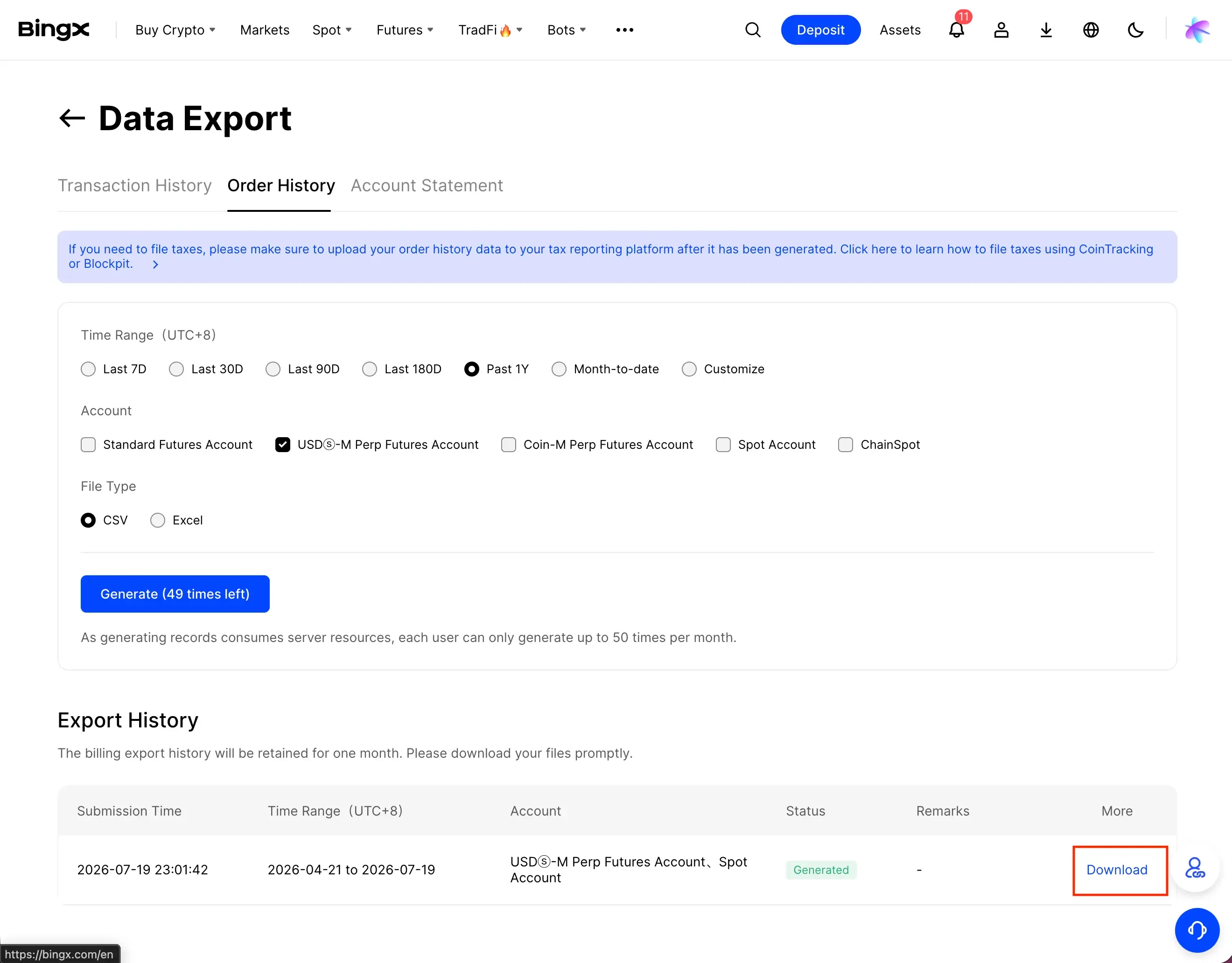
Transfer e funding fee vengono saltati. Direzioni come Buy, Sell, Open Long e Close Short sono supportate.
| Problema | Cosa provare |
|---|---|
| CSV non riconosciuto | Carica un export Order History per USD-M Perpetual Futures (colonne come Pair, Type, Quantity, AvgPrice, Time). |
| XLSX rifiutato | In BingX Data Export scegli File Type → CSV prima di Generate. Se hai già Excel, salvalo come CSV UTF-8. |
| 0 trade importati | Conferma che il file abbia righe filled di Order History (USD-M Perpetual), non solo depositi, transfer o Spot. |
Prop Desk nel Free traccia perdita giornaliera, trailing drawdown e readiness al payout dai trade chiusi — gauge e avvisi in-app, non blocco dei trade in tempo reale.
Guide passo passo per collegare altri broker e piattaforme a VeloTape.


