Guide d’intégration
Comment utiliser Rithmic R Trader avec VeloTape
Exportez l’Order History depuis R | Trader Pro et importez le CSV pour journaliser vos fills futures.
Aperçu
Rithmic n’offre pas encore d’auto-sync public pour les journaux. Exportez Completed Orders depuis R | Trader Pro en CSV, puis importez le fichier dans VeloTape.
Import trades from an R | Trader Pro Order History CSV
Follow these steps to export filled orders and upload them to VeloTape. Configure columns on the Completed Orders grid before you export — Rithmic only writes visible columns.
Open Order History in R | Trader Pro
- Launch R | Trader Pro and log in to your prop firm or FCM system.
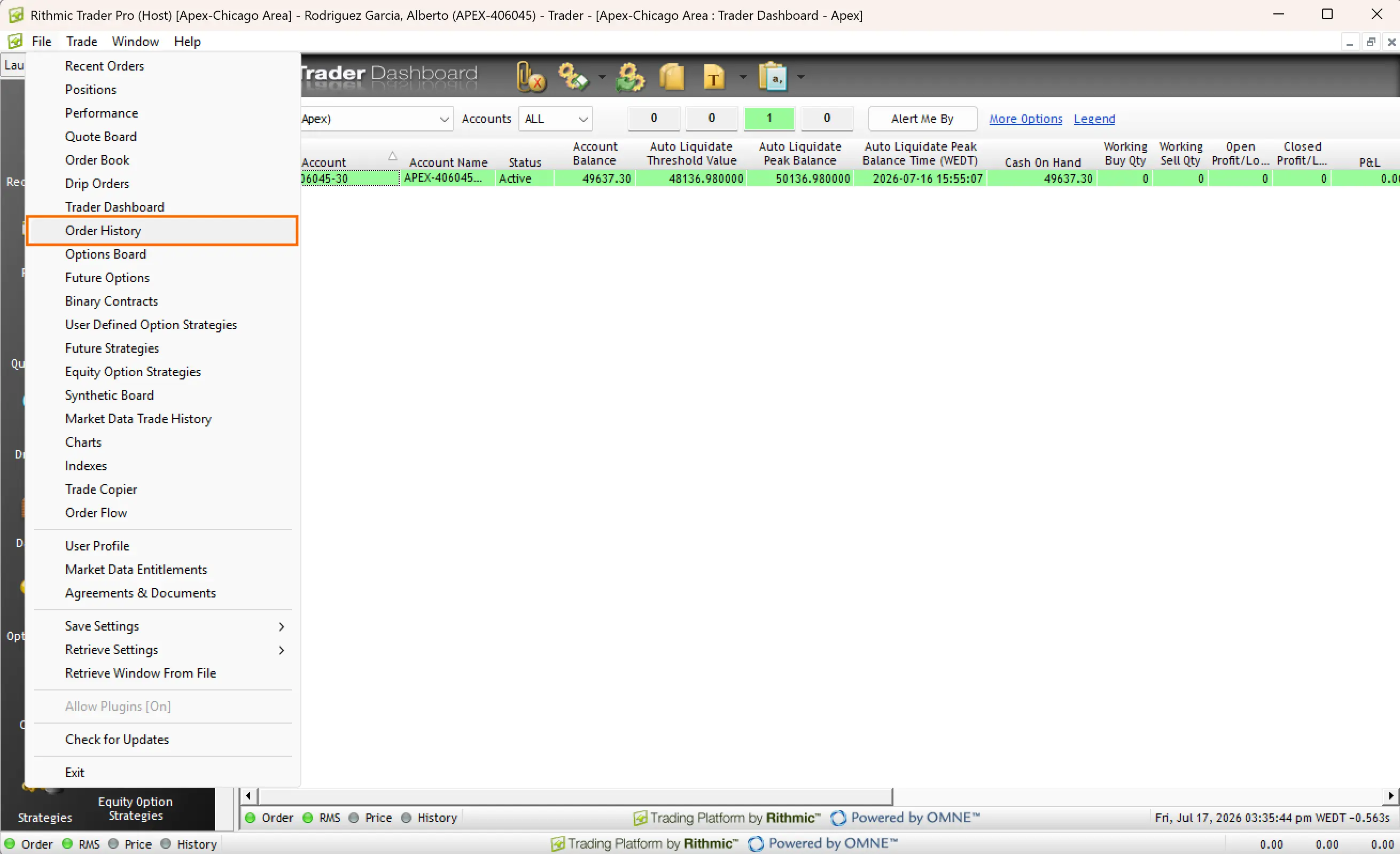
- Open File in the top-left menu.
- Select Order History from the dropdown.

Choose the account and date
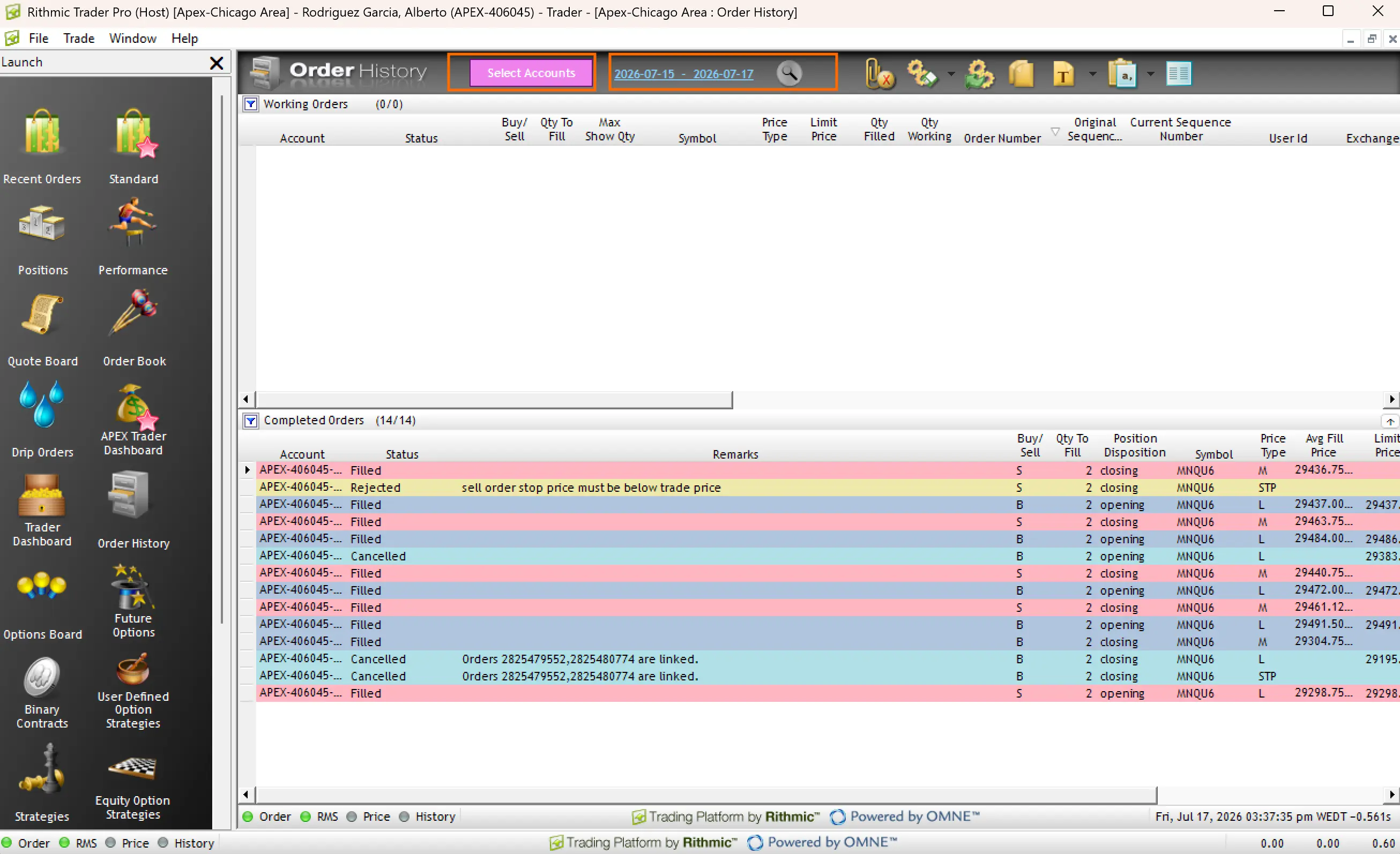
- In the Order History window, select the account you want to import.
- Pick the trading date to export.
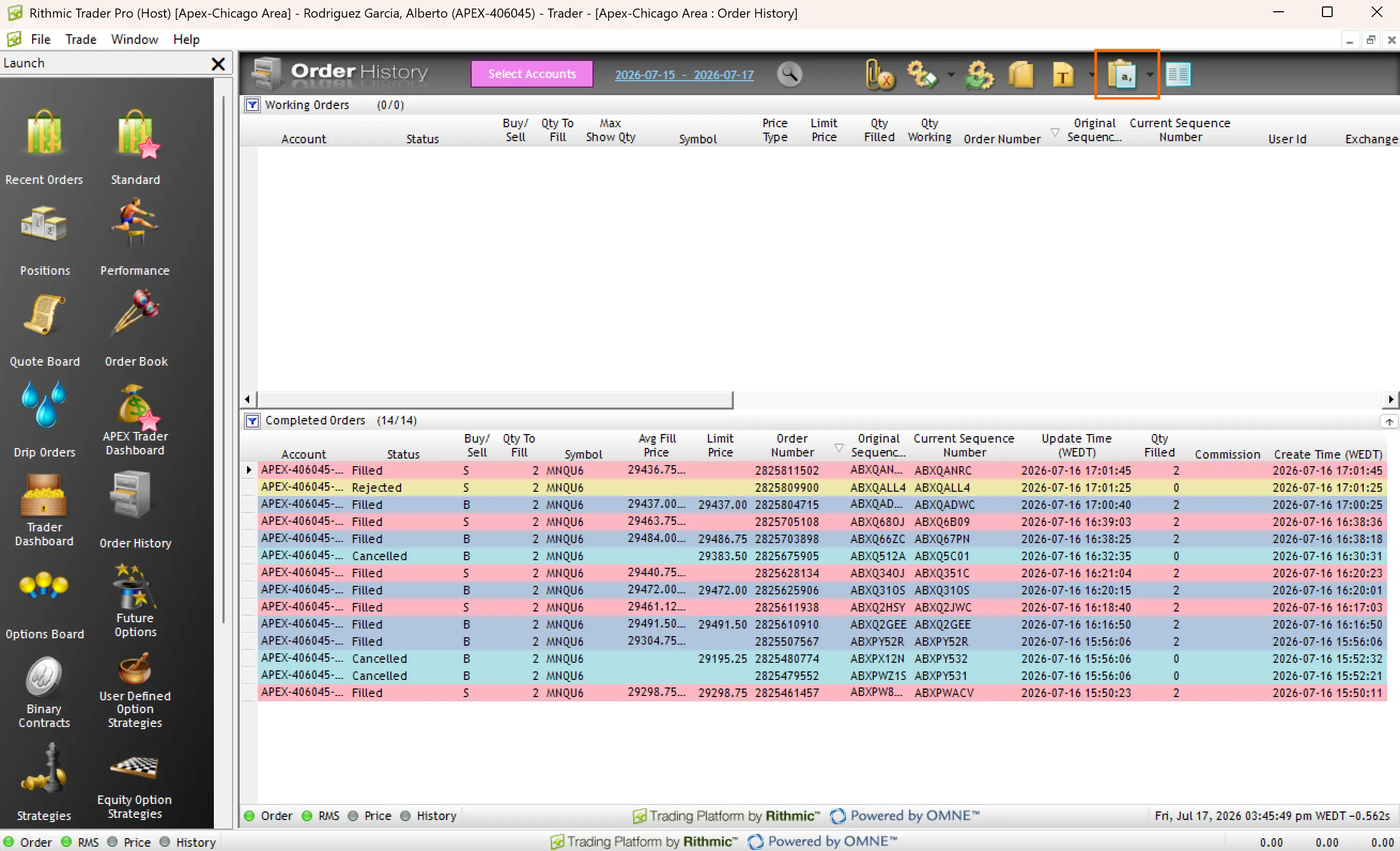
- Confirm filled rows appear under Completed Orders.
R | Trader Pro exports one day at a time. Repeat the export for each day you want in VeloTape.

Show the required columns in Completed Orders
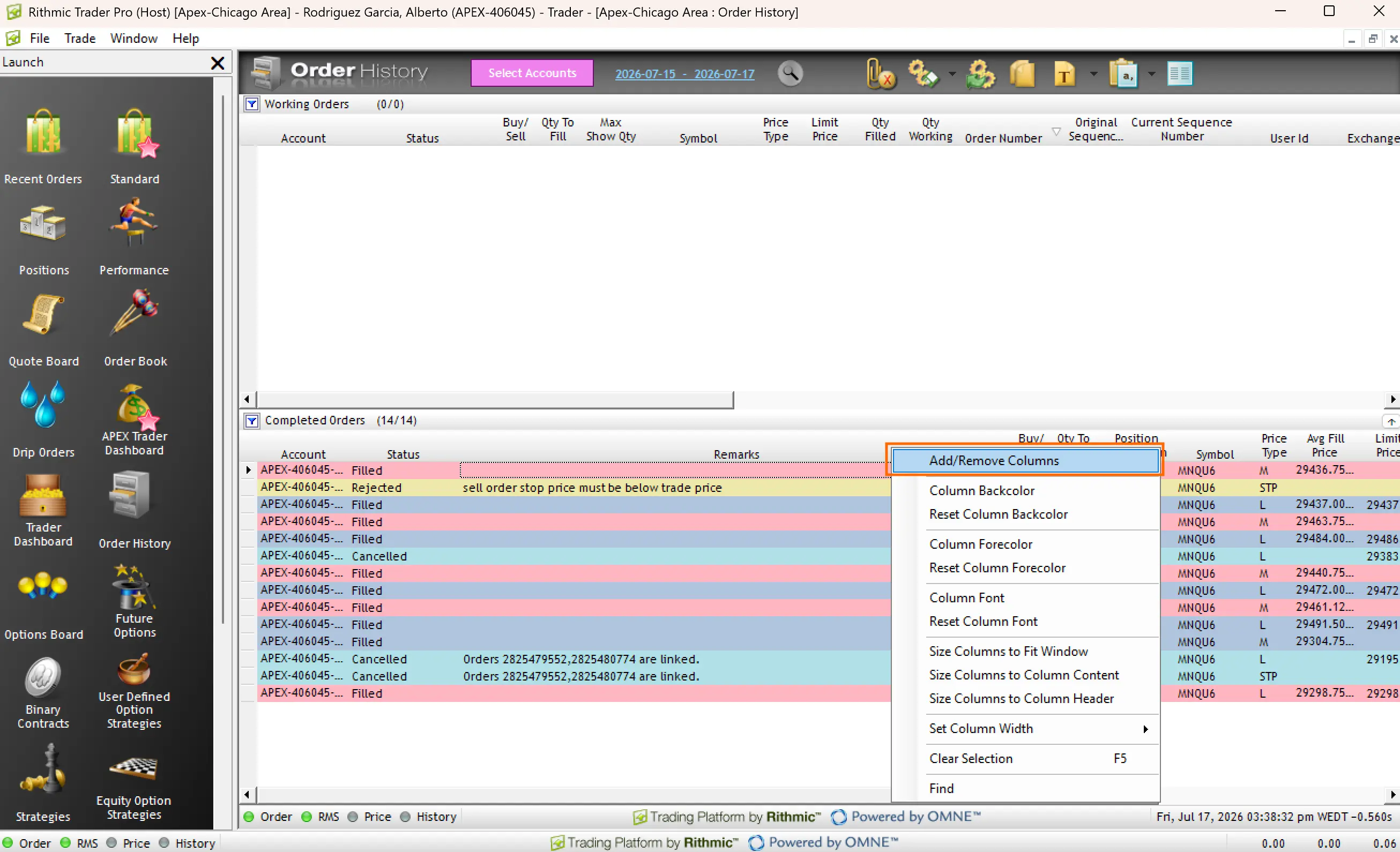
- In the Completed Orders section (not Working Orders), right-click a column heading.
- Click Add/Remove Columns.
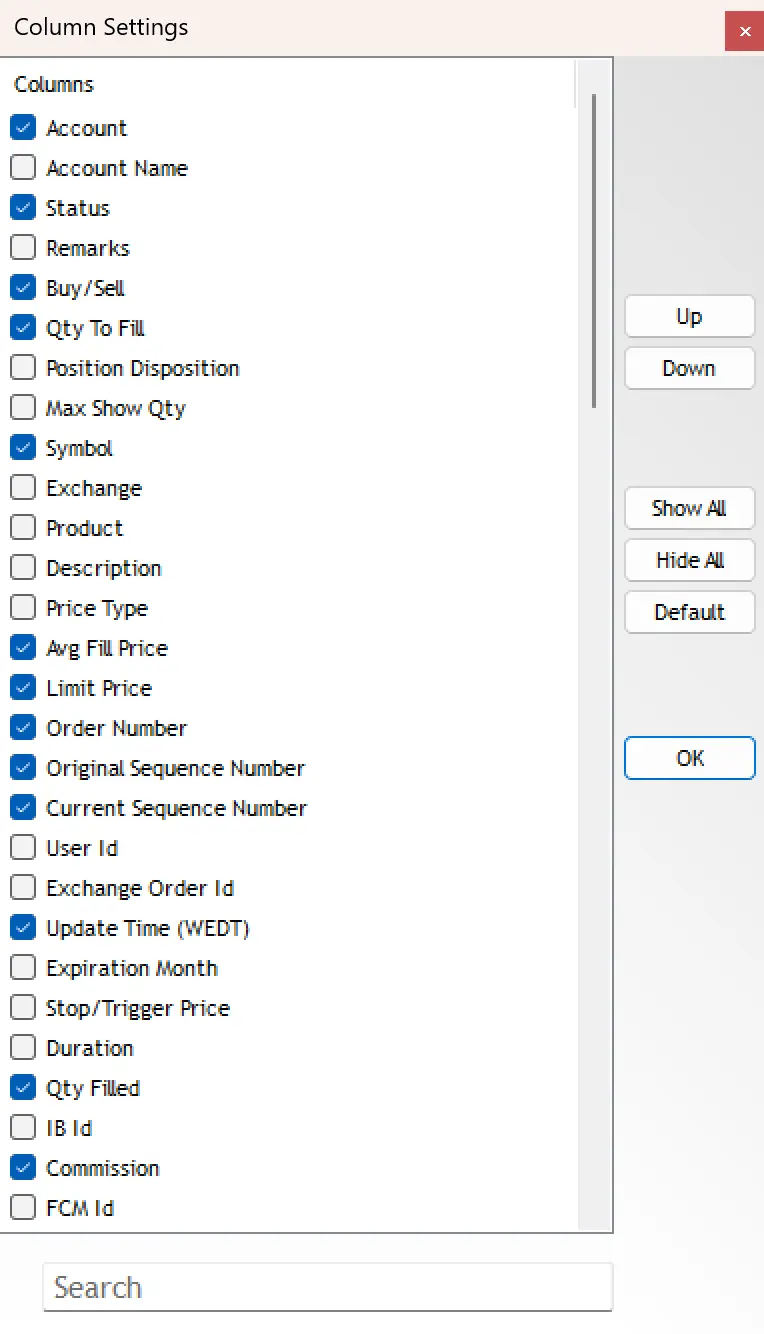
- Enable at least: Account, Status, Remarks, Buy/Sell, Qty To Fill, Symbol, Qty Filled, Avg Fill Price, Limit Price, Order Number, Create Time, Update Time, and Commission when available.
- Click OK.
Working Orders and Completed Orders have separate column settings. Always configure Completed Orders before export.


Export as CSV
- On the Order History toolbar, open the spreadsheet / export menu.
- Choose Export As CSV.
- Save the file without editing it in Excel — keep the Working Orders and Completed Orders sections as exported.

Upload the CSV in VeloTape
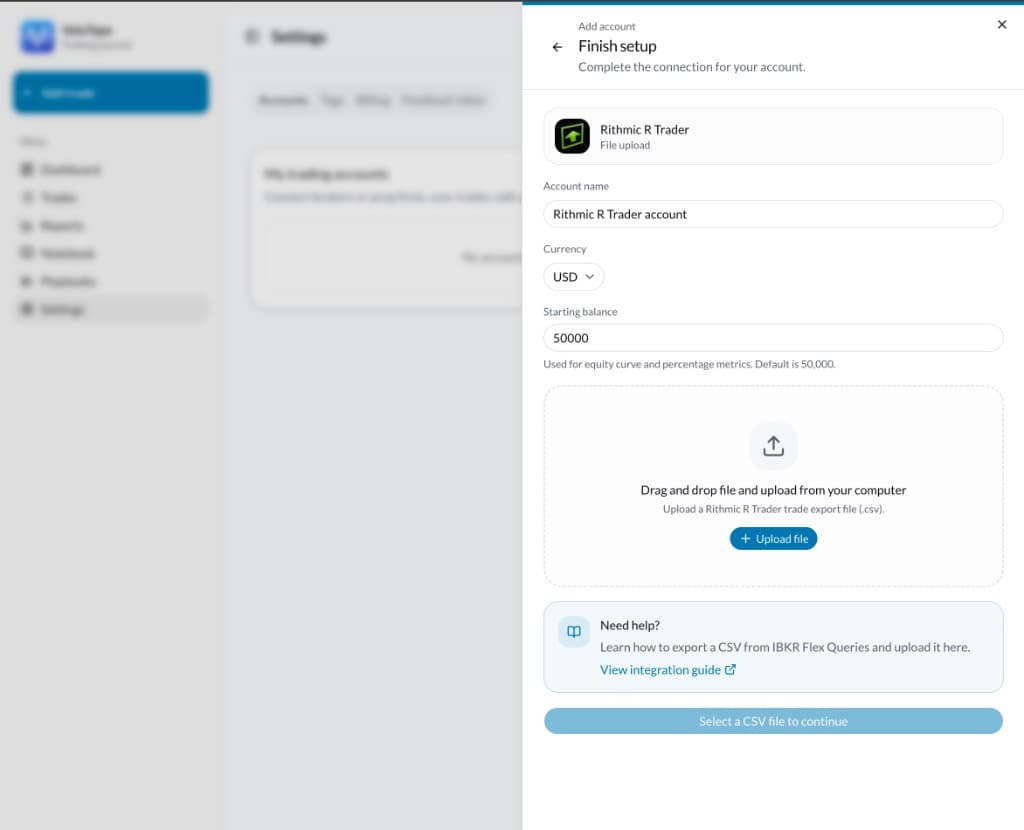
- Open Settings → Accounts → Add account.
- Choose Prop firm → Rithmic R Trader → File upload (or Apex via Rithmic).
- Enter the account name, currency, and starting balance.
- Select the Order History CSV and create the account.
- Review the grouped round-trip trades, then confirm the import.
VeloTape reads the Completed Orders table, keeps Filled rows only, and groups fills into round trips per symbol.

| Problème | Que faire |
|---|---|
| Missing Symbol, Buy/Sell, Qty Filled, or Avg Fill Price | Add those columns on the Completed Orders grid, then export again. Do not rename columns in a spreadsheet. |
| 0 trades imported | Confirm the file has Filled rows under Completed Orders. Cancelled and Rejected rows are skipped. |
| Wrong day or incomplete history | Export each trading day separately and upload every CSV for that account. |
| Unsupported or empty CSV | Export from Order History with Export As CSV. Keep the multi-section file; do not paste into a new sheet first. |
Questions fréquentes
- Is Rithmic auto-sync available?
- Not yet. Direct sync needs R | Protocol API access and Rithmic conformance. Use CSV import after each session until then.
- Which prop firms work with this guide?
- Any account that trades through R | Trader / Rithmic — including Apex, Topstep, Bulenox, Earn2Trade, and similar — as long as you export Order History CSV.
- Can I export more than one day at once?
- R | Trader Pro Order History is day-scoped. Export once per day and upload each file to the same VeloTape account.
- Are commissions included?
- Yes when the Commission column is visible at export time. If it is hidden, P&L may omit commissions.
- Will re-uploading the same day create duplicates?
- VeloTape matches fills within the account to avoid duplicate round trips when you re-import overlapping exports.
Intégrations associées
Importez des trades d’autres courtiers et plateformes avec le même parcours guidé.